If you run a nonprofit, your website probably has a Donate button that sends people somewhere else. A third-party giving page, a PayPal button, or a platform that takes a percentage of every gift. It works, in that money arrives. But the donor’s details live on someone else’s system, you pay a fee on top of the card processing, and when you want to ask that person to give again, you’re starting from an export.
A donation form is a form on your own website that lets supporters give to your organization, capturing who they are, how much they’re giving, whether it’s a one-time gift or a monthly one, and taking the payment.
In this post we’ll look at what a donation form needs to include, how to build it in WordPress from the donation form template that comes with Gravity Forms, and how to make sure a first gift isn’t the last one.
What a donation form needs to include
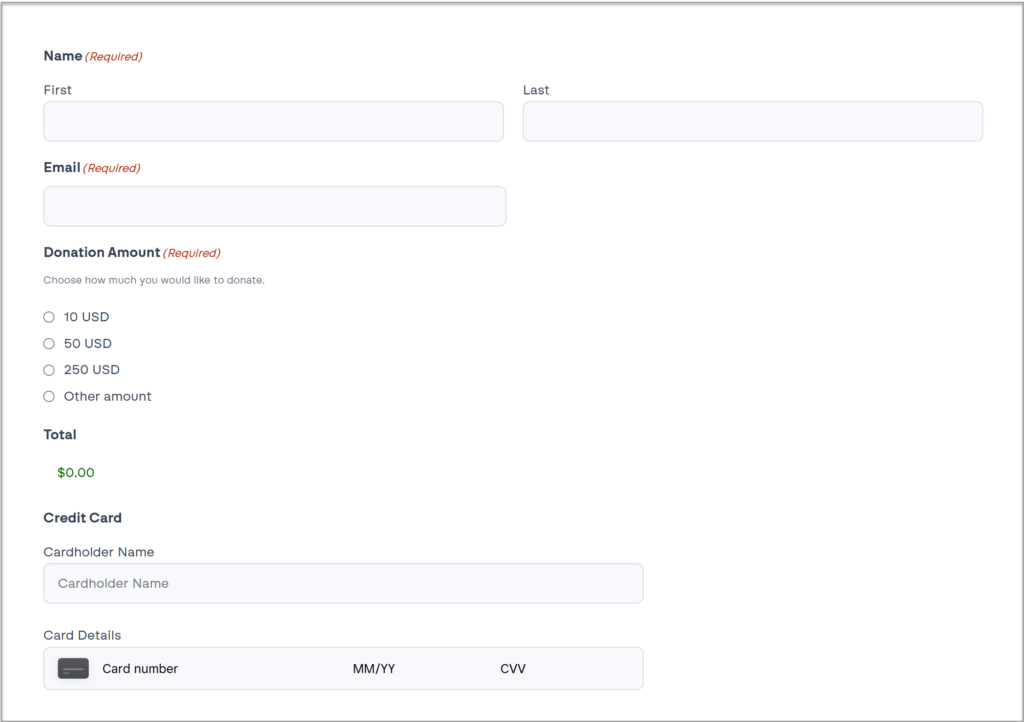
A good donation form makes giving quick and makes giving again easy. Every extra field is one more reason for a supporter to stop before they finish, so keep it to what you need:
- Donor name and email: Enough to thank them and to add them to your list. Ask for an address only if you need it for a tax receipt.
- Amount: A few preset amounts plus a custom option. Presets nudge the gift size, and the custom field means nobody is turned away.
- One-time or monthly: A single choice, with monthly as an option on every form. This is the field that changes what a donor is worth to you over a year.
- What the gift is for: Optional. A dropdown of funds or campaigns if you run more than one, so the gift is recorded against the right thing.
- In honor or in memory of: Optional, and worth including. Tribute gifts are common and donors expect to see the option.
- Permission to stay in touch: A checkbox, so you can email the donor about the work their gift supports.
- Payment: Card details on the form itself, so the donor never leaves the page.
Start with the donation form template
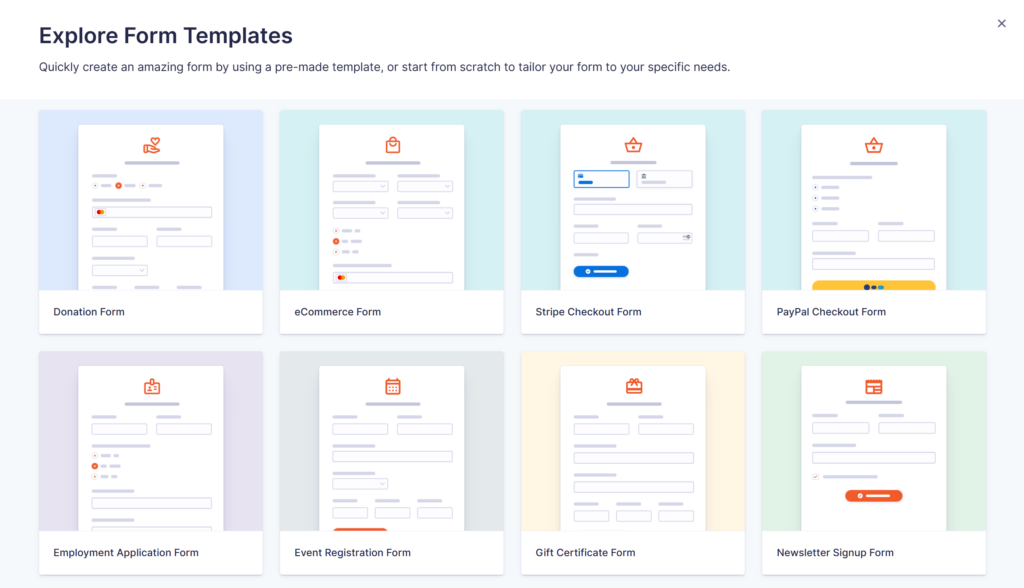
Gravity Forms includes a template library with every license, in the form editor under Add New. The Donation Form template already has name and email fields, preset donation amounts with a custom option, and card fields, set up for Stripe out of the box. Change the amounts, add a monthly option and a fund dropdown, and it’s ready.
Stripe is the example we’ll use, but Gravity Forms supports Stripe, PayPal, and Square, so use whichever your organization already banks with.
Building your donation form in WordPress: five steps
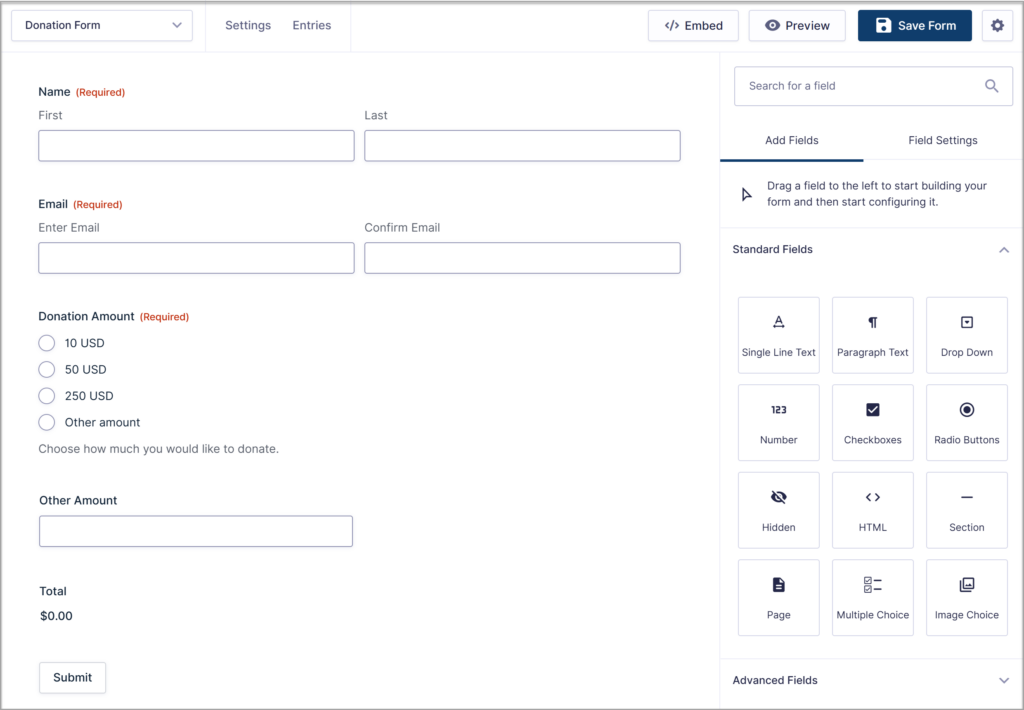
Here’s the short version. Each step takes a few minutes, and the documentation has the detail if you want it:
- Open the template: In your WordPress dashboard, go to Forms, click Add New, and choose the Donation Form template.
- Set your amounts: Change the preset amounts to suit your donors, keep the custom option, and add a choice between one-time and monthly.
- Connect Stripe: Install the Stripe Add-On, connect your Stripe account, and set up a feed on the form. Create one feed for one-time gifts and one for subscriptions, each with conditional logic on the one-time or monthly field.
- Set up notifications and the confirmation: Notifications are the emails that go out when a donation comes in, to you and to the donor. The confirmation is the thank-you message the donor sees on the page after they give. Both can be customized and are in the form settings.
- Add the form to a page: Drop your form in the Gravity Forms block, publish the page, and you’re taking donations.
For a full walkthrough of the recurring setup, see how to create a recurring monthly donation form.
How to keep donors giving after the first gift
After a donation comes in, three things should happen without anyone lifting a finger: the donor is thanked, their details land in the system you use to stay in touch, and if they chose monthly, the next gift is already scheduled. That’s what turns a form into a fundraising channel.
Say thank you in your own words
Stripe sends a payment receipt automatically, so you don’t need to build one. What it can’t send is a thank-you from you. A notification from the form can go out the moment the gift is made, telling the donor what their money will do, signed by a real person. If that email lands in spam, the donor’s first contact with you after giving is silence.
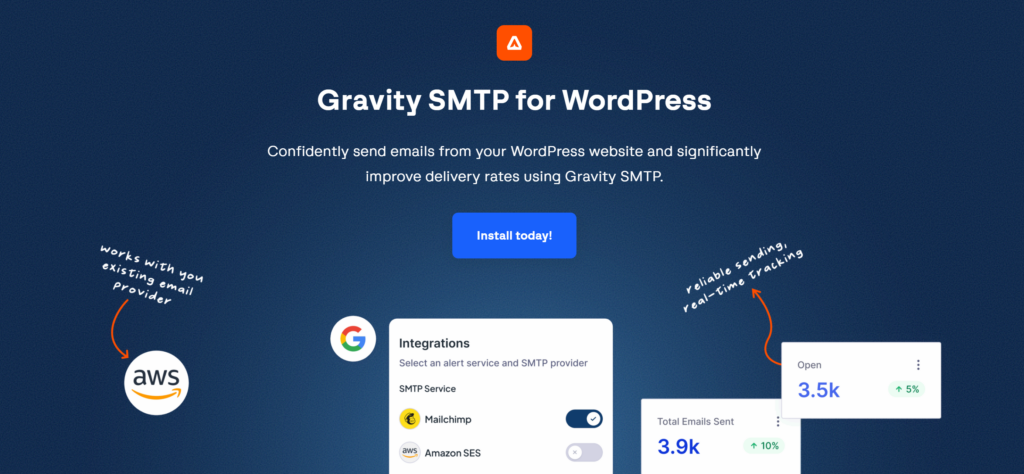
WordPress on its own isn’t reliable at sending email, so Gravity SMTP routes your site’s email through a proper email service and keeps a log of every message. Gravity SMTP is included with Elite, Nonprofit, and Developer licenses.
Get every donor into your CRM or email list
This is the part that pays off for years. Every donor should land in whatever you use to manage relationships, tagged by the campaign they gave to and whether they’re monthly, so the next appeal is personal and the lapsed donors can be found.
Gravity Forms has add-ons for most of the tools nonprofits use. For larger organizations running Salesforce, a donation creates or updates the contact record directly. For email, there are add-ons for Mailchimp, HubSpot, Constant Contact, ActiveCampaign, and more, and Zapier covers almost anything else. Each one is a feed on the form, so a donor can go to Salesforce and Mailchimp at the same time, with the fields mapped once. See the full list on the integrations page.
Make monthly giving the default path
A monthly donor is worth many one-time donors, and the difference between the two is often just whether the option was there. With the subscription feed set up in step 3, a donor who picks monthly is charged automatically each month through Stripe, PayPal, or Square, and the form records each payment against their entry. Nothing to chase, nothing to re-enter.
Follow up on the gifts that need it

Most donations don’t need anyone’s attention. Some do. A gift over a certain amount, or a gift to a specific campaign, might warrant a personal call from your development director.
Gravity Flow can route those entries to the right person as a task, so the follow-up happens rather than getting lost. Gravity Flow is a premium workflow automation add-on that works with Gravity Forms, brought to you by the Gravity team.
What it costs a nonprofit
Gravity Forms offers a Nonprofit License at $129 a year for three sites, available to registered nonprofits through an application. It includes all Gravity Forms Add-Ons – Stripe, PayPal, and Square, Mailchimp and HubSpot, Zapier, and Gravity SMTP.
When a donation form isn’t enough
A donation form is the right tool for taking gifts on your own site, offering monthly giving, and feeding donors into your CRM. It doesn’t do peer-to-peer fundraising, donor walls, or campaign progress bars. If those are central to how you raise money, you’ll want a dedicated fundraising platform for the campaign and a Gravity Forms donation form for the everyday giving on your site.
Frequently asked questions
Does Gravity Forms take a fee on donations? No. Gravity Forms doesn’t charge a platform fee or a percentage of gifts. You pay your payment processor’s standard rate and the license cost, and that’s all.
Can I run several campaigns from one donation form? Yes. Add a dropdown for the fund or campaign, and use it to tag the donor in your CRM or email list and to route notifications to the right team. One form, one set of payment settings, any number of campaigns.
Can I make a donation form in Google Forms? No. Google Forms can’t take payments, so the best it can do is collect a pledge you then have to chase. A donation form needs to take the card details on the page.
Donors who give twice
Build the form once and every gift arrives on your site, in your system, with the donor thanked and on your list before you’ve seen the notification. The next appeal goes to people who’ve already said yes, and the monthly gifts keep coming without anyone asking.
Apply for the Nonprofit License

Newsletter
Keep up to date with what’s happening at Gravity – sign up for the newsletter!