If you run your email in Mailchimp and your website on WordPress, every form on that site should be adding people to your audience, not just the signup box in the footer.
With Gravity Forms, you can build a form for any requirement, from a newsletter signup to an order form, a registration form, or a donation form with payment. With the Mailchimp Add-On, any of those forms can add the person to the right Mailchimp audience the moment they submit, tagged by what they did and with the fields mapped the way your campaigns expect them.
In this post we’ll look at everything the integration can do, how businesses are putting it to work, and how quickly you can have it up and running on your own site. We’ll also cover the other ways to connect Mailchimp and WordPress, so you can be sure this is the right one.
What Mailchimp does, for anyone still deciding
Mailchimp is an email marketing platform: a place to keep your audience, segment it by what people have done and what they’re interested in, and send them campaigns and automated sequences.
It’s built for businesses that want to stay in touch with customers and prospects without a sales team working each one, which is why it’s the default for small businesses, shops, and nonprofits. An audience is only worth what’s in it, though, and for most businesses the website is where new subscribers come from. That’s the gap the integration closes.
What the Mailchimp integration does
The Mailchimp Add-On takes the contact details from any form submission on your WordPress site, such as name, email, and anything else you’ve asked for, and creates or updates the subscriber in your Mailchimp audience, with the right tags attached. Here’s what it can do:
- Add subscribers to any audience: Each form sends to the audience you choose, so a customer form and a trade form can feed different lists.
- Map any form field to any Mailchimp field: Name and email are the start. A dropdown for the product they bought, their location, or the event they registered for can fill a Mailchimp field too.
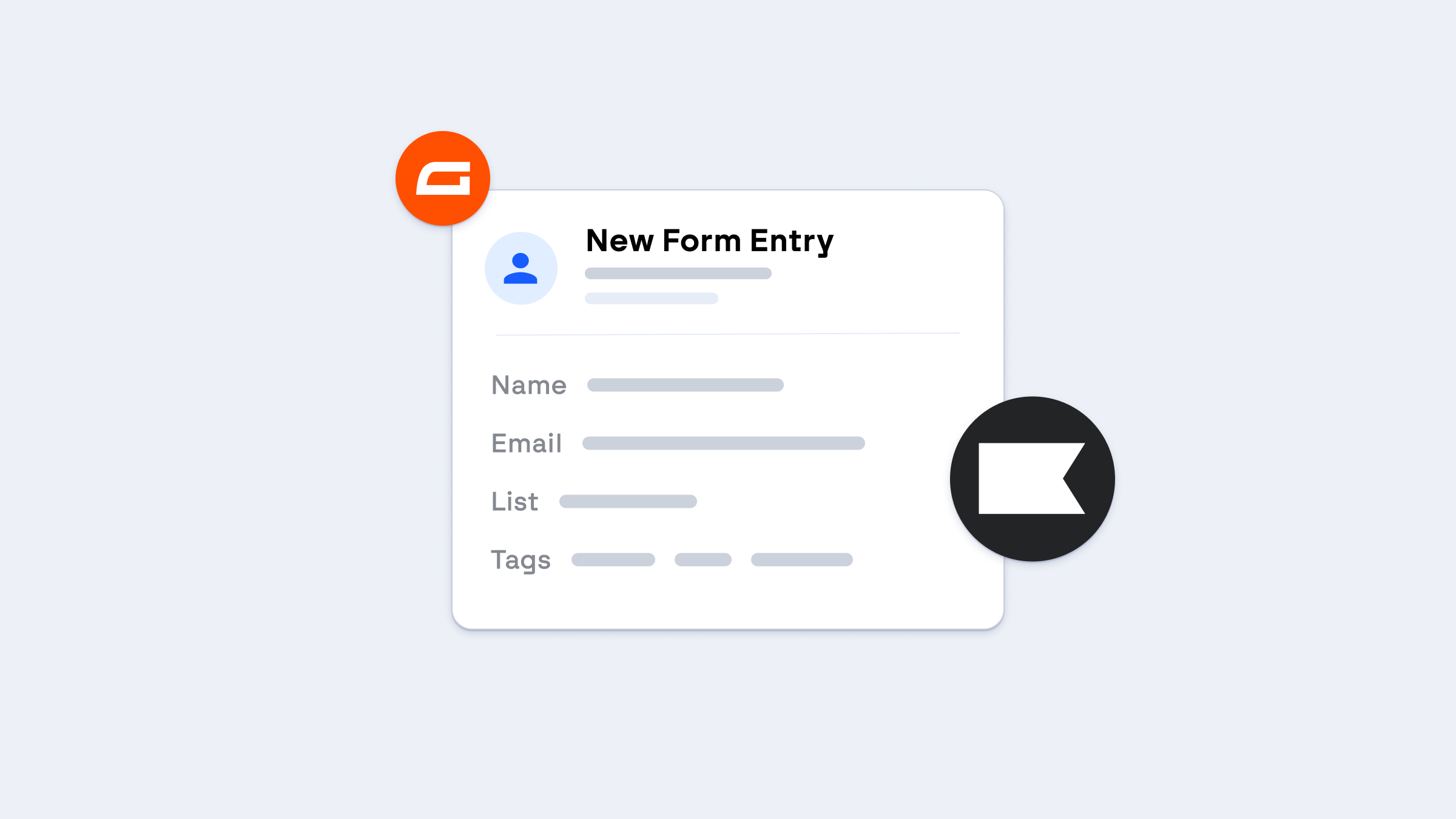
- Tag and group subscribers on the way in: Tags and groups are set on the feed, so everyone from the event registration form arrives tagged with the event, ready to segment.
- Double opt-in, if you want it: Turn it on and Mailchimp sends the confirmation email before the person is added, which keeps the list clean and keeps you on the right side of consent rules.
- Record marketing permissions: For audiences with GDPR fields turned on, the form’s consent checkboxes map to Mailchimp’s marketing permissions, so the record of what someone agreed to lives in Mailchimp.
- Send only the people who opted in: Conditional logic on the feed means the subscriber is added only if they ticked the box, or only if they chose a particular option.
- Update subscribers who are already there: If the email address is already in the audience, the add-on updates the existing subscriber rather than creating a duplicate.
What it looks like in practice
The signup form is the obvious one. The useful part is that every other form becomes a signup form too:
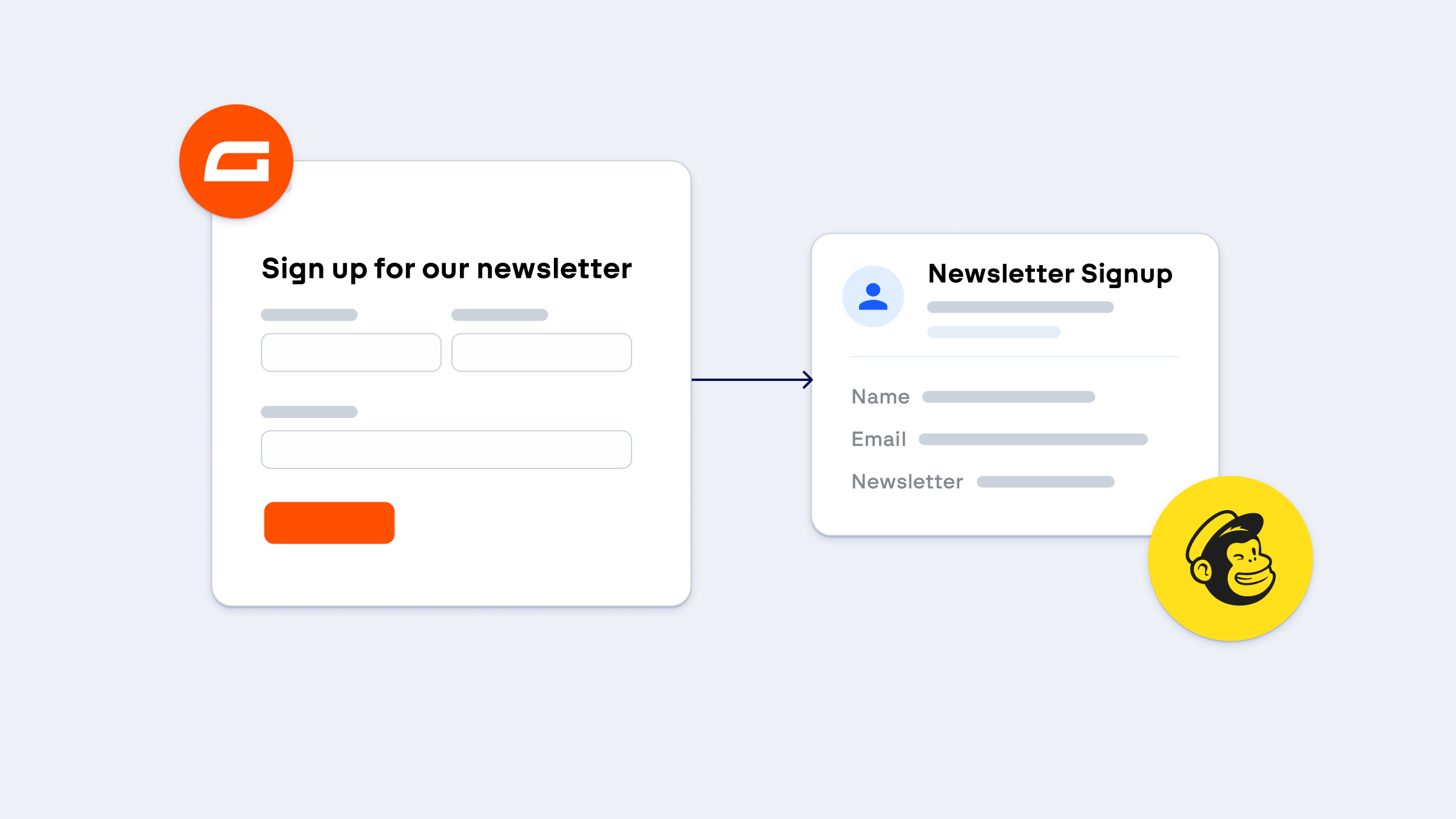
- A newsletter signup adds the subscriber, tagged by interest: The classic. A short form with a checkbox or two for topics, each mapped to a Mailchimp group, so the first email they get is about what they asked for.
- An order form adds the customer to the customer list: The order form adds each buyer to a customers audience, tagged by what they bought, so when you release a new product you can email the people most likely to want it.
- An event registration tags attendees by event: The event registration form adds everyone who registers to your list with the event as a tag, so the reminder a week before and the invitation to the next one both go to exactly the right people.
- A donation form keeps donors in touch: A nonprofit’s donation form adds the donor to the supporters audience, tagged by campaign and by whether they chose monthly, so the thank-you sequence and the next appeal are both personal.
Setting it up
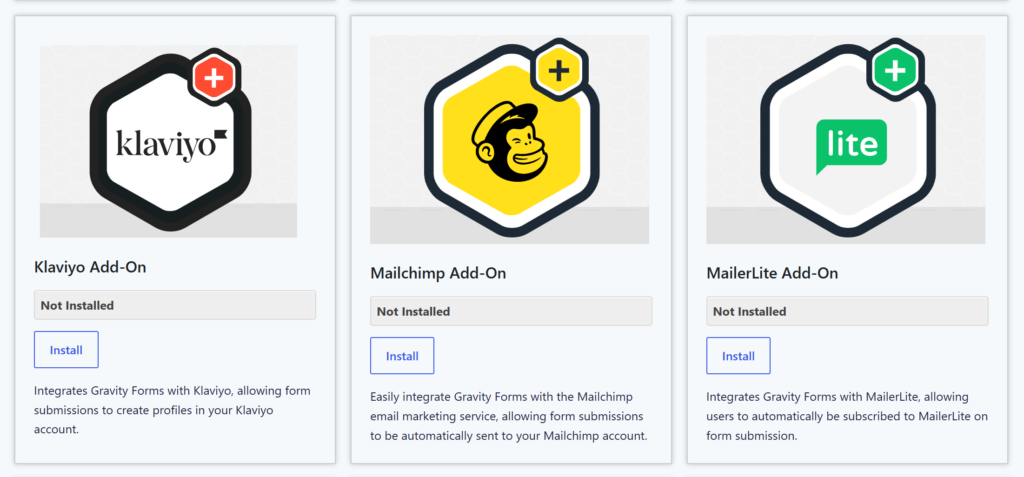
Once the add-on is installed, the setup is four steps:
- Install the add-on: In your WordPress dashboard, go to Forms, then Add-Ons, and install the Mailchimp Add-On.
- Connect to Mailchimp: Go to Forms, then Settings, then Mailchimp, and connect to Mailchimp by following the instructions to sign in to your Mailchimp account.
- Create a feed: On the form, add a Mailchimp feed, choose the audience, map the form fields to the Mailchimp fields, and set any tags, groups, and double opt-in.
- Send a test entry: Submit the form once and check the subscriber appears in Mailchimp with the right tags.
Our guide to creating a Mailchimp signup form in WordPress walks through each screen, including the template to start from.
Other ways to connect Mailchimp and WordPress
The Gravity Forms integration isn’t the only route, and it’s worth knowing when the others fit.
- Mailchimp’s embedded forms and pop-ups: Mailchimp generates a signup form you paste into a page or show as a pop-up. It’s quick for a single signup box, but the form is styled by Mailchimp rather than your site, there’s no entry kept in WordPress, and it only does signups.
- Mailchimp for WooCommerce: This is Mailchimp’s own plugin. If your store runs on WooCommerce, it syncs orders and customers to Mailchimp for abandoned cart and purchase-based automations.
- Zapier: Zapier sits between your form and Mailchimp and passes each submission across, using a Zapier account. It’s useful if you already pay for Zapier and want the same submission sent to several tools at once, and Gravity Forms has a Zapier Add-On for exactly that.
If you already use Gravity Forms, or you want to, the Mailchimp Add-On is the shortest path. It works with every form you build, not just a newsletter signup, and the entries stay in WordPress as a record of their own.
Frequently asked questions
Does the Mailchimp integration need a paid Gravity Forms license? It’s included with every Gravity Forms license, Basic, Pro, and Elite, so whichever you have, the add-on is there under Forms, then Add-Ons.
Can one form add people to different Mailchimp audiences? Yes. Create a feed for each audience and add conditional logic to each one, so a trade customer goes to the trade audience and a retail customer to the retail one, from the same form.
Can a form send to Mailchimp and a CRM at the same time? Yes. Feeds run independently, so the same submission can add the person to Mailchimp and create a contact in HubSpot or Salesforce, each with its own conditional logic.
Every form a way onto your list
Once Mailchimp and Gravity Forms are connected, every form on your WordPress site becomes a source of subscribers. Each one arrives in your audience with the fields mapped, the tags set, and the consent recorded, before you’ve even seen the notification. The signup form in the footer becomes one source among many.
Get started with Gravity Forms

Newsletter
Keep up to date with what’s happening at Gravity – sign up for the newsletter!