Every segment and flow in Klaviyo depends on the information held on each profile. The forms on your WordPress site collect that information every day: what someone ordered, which event they registered for, what they asked for a quote on, and whether they agreed to hear from you.
The official Klaviyo Add-On for Gravity Forms sends all of that into Klaviyo as a profile on the list you choose, with each answer mapped to a property, the moment the form is submitted.
In this post we’ll look at everything the integration can do, how businesses are putting it to work, and how quickly you can have it running on your own site. We’ll also cover the other ways to connect Klaviyo and WordPress, so you can be sure this is the right one.
What Klaviyo does, for anyone still deciding
Klaviyo is a marketing platform built around customer data. It holds a profile for every customer and subscriber, records what they’ve bought, browsed, and clicked, and uses that to drive email and SMS flows, from a welcome series to a back-in-stock alert.
It’s the default for online stores because the targeting improves with every data point it collects, and a store generates a lot of them. Most of that data arrives through the checkout.
The forms on the rest of the site, which take signups, registrations, and inquiries, are usually left out of it, and the integration brings them in.
What the Klaviyo integration does
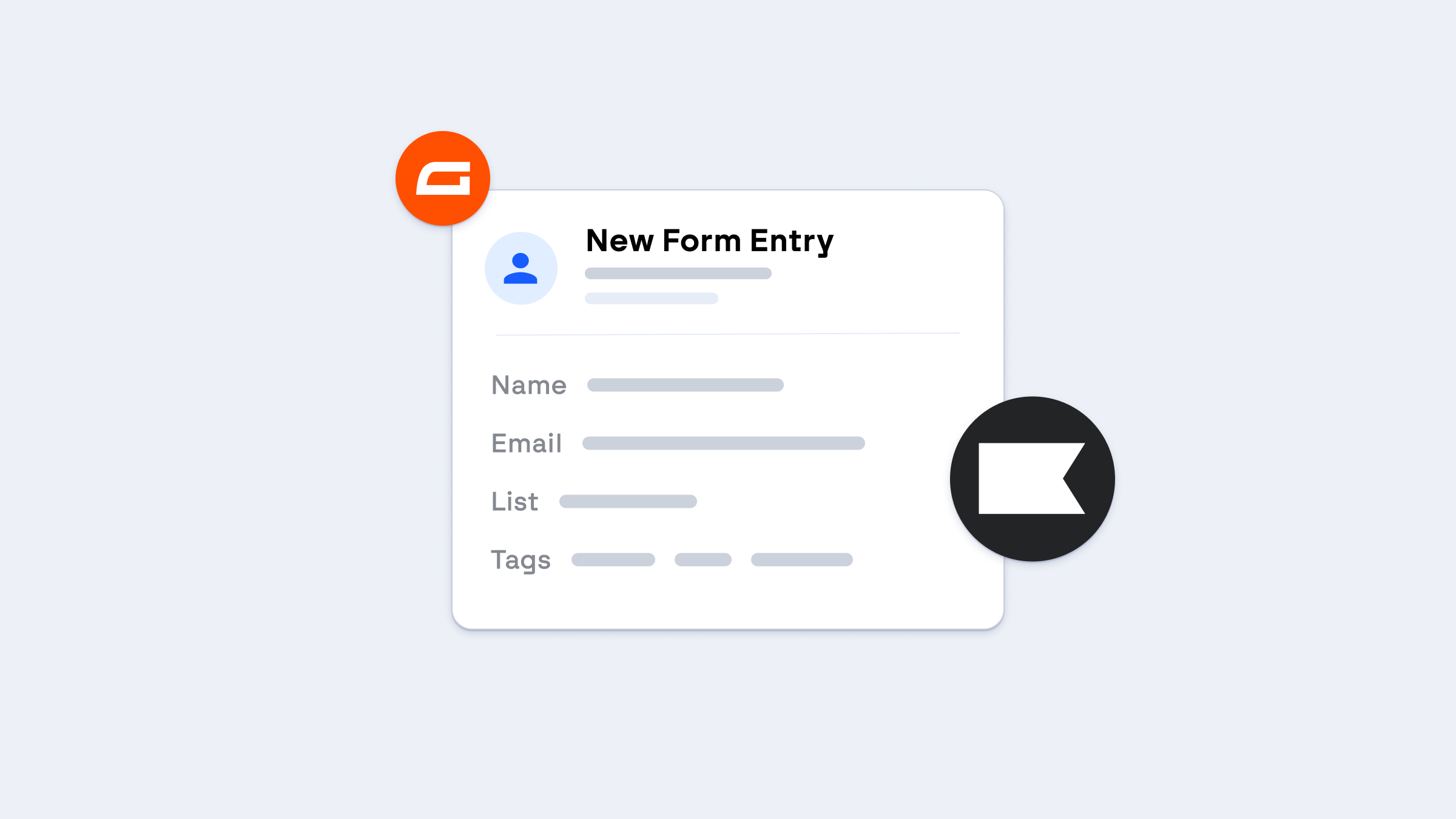
The Klaviyo Add-On takes the details from any form submission on your WordPress site, such as name, email, phone, and whatever else you’ve asked for, and creates or updates the profile in Klaviyo, subscribed to the list you choose. It’s the official add-on, built and supported by the Gravity Forms team. Here’s what it can do:
- Add profiles to any Klaviyo list: Each form feeds the list you choose, so a signup form, an order form, and an event form can fill three different lists.
- Map form fields to profile properties: Email is required, and name and phone map to Klaviyo’s own fields. Anything else on the form, such as the product they asked about or the event they registered for, can be mapped to a custom property for segmentation.
- Create new profiles or update existing ones: If the email address is already in Klaviyo, the add-on updates that profile rather than creating a duplicate.
- Add only the people who opted in: The consent checkbox on the form decides whether someone is subscribed, so your list stays compliant.
- Send only the submissions that qualify: Conditional logic on the feed means a form can send retail customers to one list and trade customers to another, or skip Klaviyo altogether for the ones who didn’t tick the box.
- Run in the background: The add-on sends to Klaviyo after the form submits, so a slow API response never slows the form down for the person filling it in.
What it looks like in practice
Klaviyo’s own pop-up collects an email address and little else. A Gravity Forms feed sends every answer on the form to the profile as a property, so you can segment by what people told you, not just by the fact that they signed up:
- A signup form that records interest: A short form with a dropdown for the topic or product range they care about, mapped to a custom property, so the welcome flow opens with the thing they asked about rather than a generic introduction.
- An order form that builds the customer profile: The order form adds each buyer to your customers list with the product as a property, so the post-purchase flow and the next launch both go to the right people.
- An event registration that segments by event: The event registration form adds every attendee with the event name as a property, so the reminder, the follow-up, and the invitation to the next one each go to exactly the right group.
- A quote request that starts a nurture flow: The quote request form adds the prospect to a prospects list, tagged by the service, so a flow follows up while your team prices the job.
What you need
The requirements are a WordPress site running Gravity Forms and a Klaviyo account on any plan, including the free one. The Klaviyo Add-On is included with every Gravity Forms license, from Basic up, so there’s nothing extra to buy on either side.
Setting it up
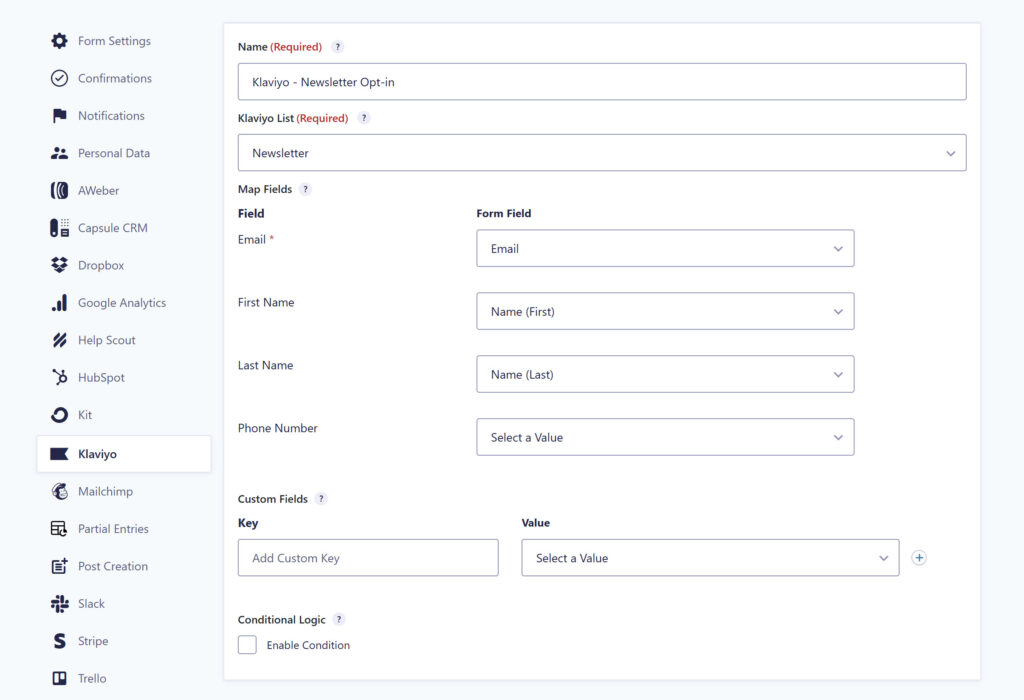
Once the add-on is installed, the setup is four steps:
- Install the add-on: In your WordPress dashboard, go to Forms, then Add-Ons, and install the Klaviyo Add-On.
- Connect to Klaviyo: Go to Forms, then Settings, then Klaviyo, click Connect to Klaviyo, and follow the instructions to sign in and connect to your Klaviyo account.
- Create a feed: On the form, add a Klaviyo feed, choose the list, map the email field and any properties, and set the consent condition.
- Send a test entry: Submit the form once and check that the profile appears in Klaviyo on the right list with the properties filled in.
Our guide to getting started with the Klaviyo Add-On walks through each screen.
Other ways to connect Klaviyo and WordPress
The Gravity Forms integration isn’t the only route, and it’s worth knowing when the others fit.
- Klaviyo’s own WordPress plugin: This is Klaviyo’s plugin. It adds Klaviyo’s tracking script to your site and lets you show Klaviyo’s signup forms and pop-ups on it. The forms are built and styled in Klaviyo rather than on your site, there’s no entry kept in WordPress, and it only does signups.
- Klaviyo for WooCommerce: Also Klaviyo’s own. If your store runs on WooCommerce, it syncs orders, carts, and customers to Klaviyo for abandoned cart, post-purchase, and back-in-stock flows.
- Zapier: A Zap can take each submission and create the Klaviyo profile, with the usual Zapier account and task limit in the middle. It makes sense if Klaviyo is one of several places the submission needs to go and you’re already set up there, which is what the Gravity Forms Zapier Add-On is for.
For anything that isn’t a WooCommerce order or a plain signup, the Gravity Forms Klaviyo Add-On is the direct route, whether you already use the plugin or you’re choosing a form builder now.
It carries the full form submission across, not just the email address, and keeps the entry in WordPress as a record of its own.
Frequently asked questions
Can I use conditional logic to decide what goes to Klaviyo? Yes. Each Klaviyo feed has its own conditional logic, so a form can send only the submissions that match, such as the people who ticked the consent box, or the ones who chose a particular product or service. Anything that doesn’t match stays in Gravity Forms as an entry and never reaches Klaviyo.
Can a Gravity Forms submission go to Klaviyo and somewhere else at the same time? Yes. Feeds run independently, so the same submission can create a Klaviyo profile and also add the person to HubSpot or Salesforce, post to Slack, or trigger a Zap, each with its own conditions.
What happens if someone is already in Klaviyo? The add-on updates their existing profile with the new answers rather than creating a second one, and adds them to the list on the feed if they aren’t on it already. Nothing is overwritten that the form didn’t ask about.
Profiles that fill themselves in
With the Gravity Forms Klaviyo Add-On in place, the forms you were already running start feeding Klaviyo the details your segments and flows have been missing.
Every entry becomes a profile on the right list, with the properties set and the consent recorded, and the export that used to happen on a Friday afternoon stops being a job.
Get started with Gravity Forms

Newsletter
Keep up to date with what’s happening at Gravity – sign up for the newsletter!