If you run a small business, you probably take orders in a few different ways. Some come in by email, some by Instagram message, a few over the phone, and they all end up in a spreadsheet you update when you get a minute. It works, most of the time. Then an order never makes it into the spreadsheet at all, and you spend the morning apologizing.
An order form puts a stop to that. It’s a form customers fill out to buy products or services from you, capturing what they want, how many, where it’s going, and how they’re paying.
In this post, we’ll look at what to put on one, what should happen after a customer hits submit, and how to build yours in WordPress using the ecommerce form template that comes with Gravity Forms.
The problem isn’t collecting orders
Most businesses can collect an order. The trouble is everything between collecting it and fulfilling it. Details get retyped, so they get retyped wrong. Payment happens separately, so it happens late. The receipt is written by hand, so on a busy day it isn’t written. And when a customer asks where their order is, the answer is in three places and in nobody’s head.
A well-built order form closes those gaps because everything happens on submit. The customer sees the total and pays, the receipt goes out on its own, and the order lands with whoever makes or ships it. The rest of this post walks through each piece.
What an order form needs to include
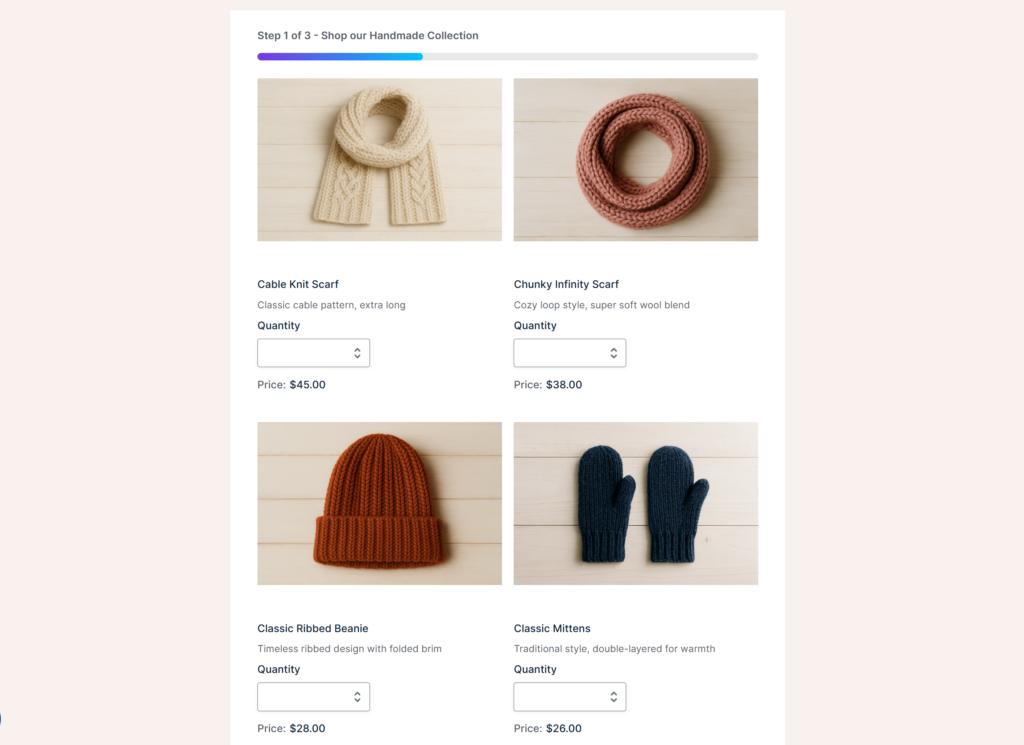
A good order form asks for everything you need to fulfill the order and get paid, and nothing more. Every extra field is one more reason for a customer to give up halfway, so keep the list short. For most businesses, it comes down to these:
- Products and options: What you sell, with a price for each item, and the choices that change what you send, such as size, flavor, or color.
- Quantities: A quantity for each product, or for each option if you sell things like shirts in several sizes.
- Who’s ordering: Name, email, and a phone number if you sometimes need to check a detail quickly.
- Where it’s going: A shipping address for physical goods, or a pickup or delivery date and time if that’s how you work.
- How they’re paying: A billing address and a payment field, so the customer pays as part of placing the order.
- The total: Calculated automatically and shown before the customer submits, including shipping, so there are no surprises.
- A notes field: A little space for the thing you didn’t think to ask about. This is where “please write Happy Birthday Sam” lives.
If you sell services rather than products, swap shipping for a preferred start date and give customers a short description field for what they need.
Start with the order form template
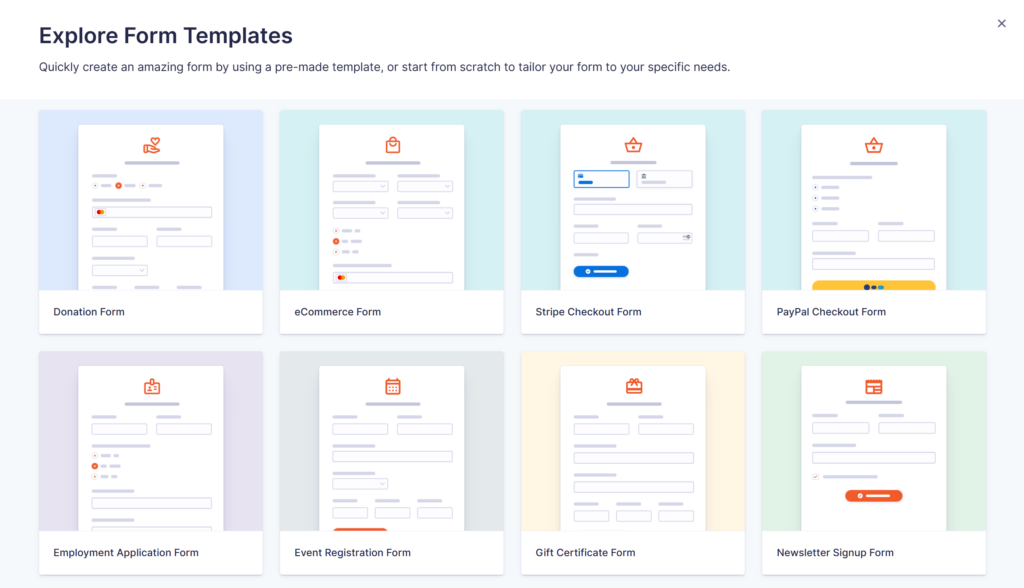
You don’t need to build any of this from a blank form. Gravity Forms includes a template library with every license, and you’ll find it in the form editor when you click Add New.
The one you want is the Ecommerce Form template. It already has product and quantity fields, customer details, billing and shipping addresses, delivery options, and a payment field, with a total that updates as the customer makes their choices.
From there, it’s your form. Swap in your own products and prices, add or remove options, select your own payment provider (Stripe, PayPal, Square, or one of the others), and delete anything you don’t need. It’s the same editor you use for every other form on your site.
Building your order form in WordPress: five steps
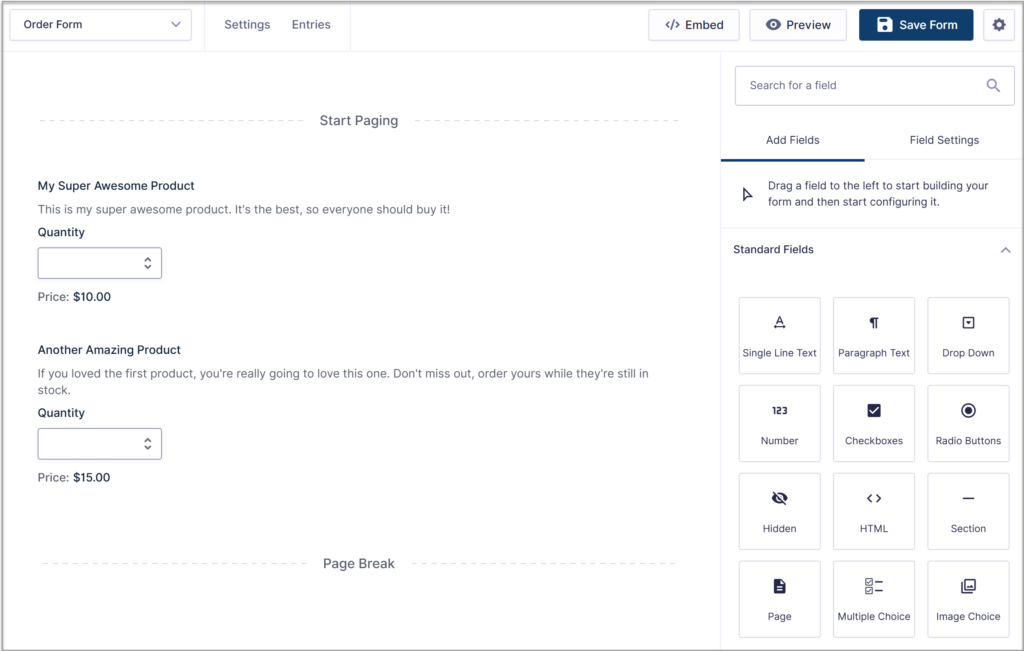
Here’s the short version of turning that template into a live order form. Each step takes a few minutes, and the documentation has the detail if you want it.
- Open the template. In your WordPress dashboard, go to Forms, click Add New, and choose the Ecommerce Form template.
- Add your products. Replace the sample products with your own, set the prices, and add options like size or flavor. The total updates on its own.
- Connect a payment method. Install the Stripe, PayPal, or Square Add-On, connect your account, and set up a feed on the form so customers pay as they submit.
- Set up notifications and the confirmation. Notifications are the emails that go out when an order arrives, to you and to the customer. The confirmation is the message the customer sees on the page after they submit. Both can be customized and are in the form settings.
- Add the form to a page. Drop in the Gravity Forms block and you’re taking orders.
What should happen after someone submits an order
After a customer submits an order form, four things should happen without you touching it: payment is taken, a receipt goes out, the order reaches whoever fulfills it, and the customer is added to your list. This is the part most order form guides skip, and it’s where the time savings actually come from.
Take payment with the order
When payment is part of the form, there’s no invoice to send and nothing to chase. Connect a payment add-on such as Stripe, PayPal, or Square, and the customer pays as they submit.
The payment status is stored with the order, so you can see at a glance what’s been paid. If you take deposits for custom work, you can charge a fixed amount up front and settle the rest later.
Payment add-ons are available with a Gravity Forms Pro or Elite license. For a full walkthrough, see our guides to taking payments with Stripe and taking payments with Square.
Send a receipt that actually arrives with Gravity SMTP
The order receipt is the email that tells a customer their order went through. If it lands in spam, they’ll email you to ask, and if it never arrives, they might order again and create a duplicate.
WordPress on its own isn’t reliable at sending email, so Gravity SMTP routes your site’s email through a proper email service and keeps a log of every message it sends.
When someone says they never got their receipt, you can check in seconds rather than guess. Gravity SMTP is included with Elite, Nonprofit, and Developer licenses.
Get the order to the person who fulfills it

A paid order still has to be made, packed, or approved by someone. For a simple business, a notification email to the right person is enough. For anything with more steps, Gravity Flow turns each order into a workflow.
A wholesale order can go to a manager for approval before it’s confirmed. A custom order can be assigned to whoever’s making it, with a task to mark it complete. The customer can get a “your order has shipped” email when that task is done, and the entry keeps a timeline of who did what and when.
Gravity Flow is a premium workflow automation add-on that works with Gravity Forms, and is brought to you by the Gravity team. Learn more about Gravity Flow.
Keep the customer
An order is also a new contact. Add-Ons for Mailchimp, HubSpot, and other tools can add each customer to your list automatically, tagged by what they bought, so your next launch goes to the people most likely to order again.
Order forms for different businesses
The structure above stays the same whatever you sell. The details shift a little.
- T-shirt or merchandise order form: Size and color options with a quantity for each, plus a notes field if you print names or numbers for teams.
- Bakery or catering order form: A pickup or delivery date and time instead of shipping, a field for dietary requirements, and a minimum order value.
- Wholesale order form: A product list with quantities beside each item, a business name and tax ID, and an approval step before the order is confirmed.
- Service order form: Packages or hourly options instead of products, and a preferred start date.
- Event or fundraiser order form: Ticket or item types with a limited quantity of each, an attendee or recipient name, and a pickup option for people collecting on the day.
When an order form isn’t enough
An order form is a good fit when you sell a small range of products, take custom orders, or want to collect a deposit rather than a full payment. It’s the right choice for most small businesses, and it’s a lot less to set up and maintain than a store.
It’s the wrong choice if you have hundreds of products, need live inventory tracking, or want carrier shipping rates and label printing. That’s a job for WooCommerce, and Gravity Forms can still handle the custom requests and quote forms alongside it.
Frequently asked questions
Can I make an order form in Google Forms? You can, for a simple one. Google Forms can’t calculate a total, take payment, or send a receipt with the order details, so most businesses end up moving to a form on their own website once orders pick up.
Can I offer discount codes on an order form? Yes. With the Gravity Forms Coupons Add-On, you create codes with a fixed or percentage discount, and customers enter them on the form. The total updates before they pay.
Do I need an SSL certificate to take payments through a form? Yes. Payment providers such as Stripe and PayPal require your site to use HTTPS, and customers expect the padlock before they enter card details. Most hosts include a certificate, so check with yours if your site isn’t already on HTTPS.
Orders that arrive finished
Build the form once and every order comes in the same way: paid, with a receipt sent, and with the person who’ll fulfill it, all from the WordPress site you already run. The spreadsheet can go, and so can the mornings spent apologizing.
Get started with Gravity Forms

Newsletter
Keep up to date with what’s happening at Gravity – sign up for the newsletter!