If you’ve run an event or two, you know the week before is when the registration process shows its cracks. Sign-ups are split between a ticketing site that charges per ticket, an email thread, and a few people who said yes in person. Someone asks about dietary requirements and you realize you never collected them. And the day before, you’re building the attendee list by hand from three places.
An event registration form is a form on your website that people fill out to sign up for an event, collecting who’s coming, which ticket or session they want, anything you need to know to look after them on the day, and payment if there is one.
In this post we’ll look at what an event registration form needs to include, how to build it in WordPress from the template that comes with Gravity Forms, and what should happen between someone signing up and the event itself.
What you need to know before the day
The easiest way to decide what goes on the form is to work backwards from the event. Everything you’ll need on the day should be collected at sign-up, and anything you won’t need should be left off. For most events, that comes down to these:
- Who’s coming: Name and email. Add a phone number if you might need to reach people on the day.
- How many: A quantity field if one person can register a group, plus the names of the others if you need them for badges or seating.
- Which ticket or session: Ticket types with prices if it’s paid, or a choice of sessions, workshops, or dates if it’s not.
- What they need from you: Dietary requirements, accessibility needs, or a t-shirt size. Ask only for what you’ll act on.
- How they heard about it: One question, and you’ll know which promotion worked.
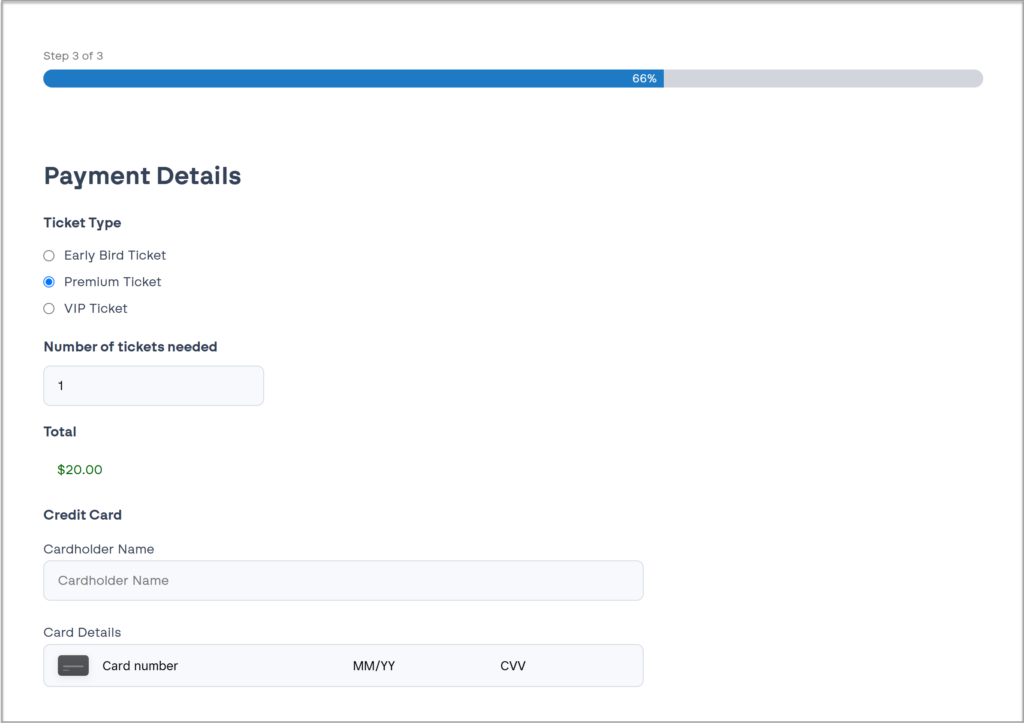
- Payment: Card details on the form itself for paid events, so the ticket is paid for at the point of registration.
Start with the event registration form template
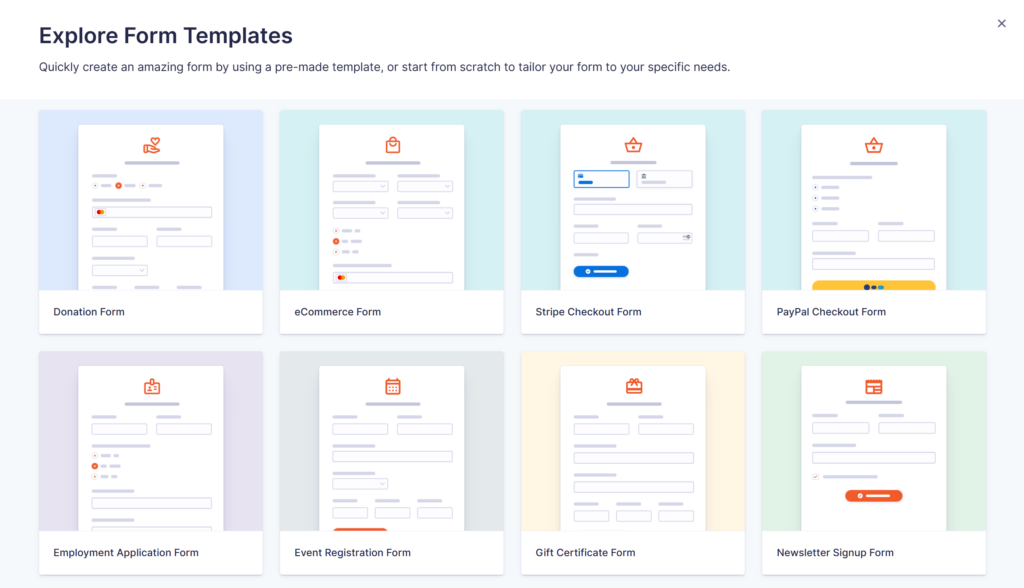
Gravity Forms includes a template library with every license, in the form editor under Add New. The Event Registration Form template is a three-page form: contact details on the first page, event questions on the second, and ticket selection with payment on the third. It comes with three ticket tiers, a quantity field, and a running total.
For a paid event, connect Stripe, PayPal, or Square. Payment add-ons need a Pro or Elite license. If there’s no charge to attend, delete the payment page and you have a two-page form.
Building your event registration form in WordPress: five steps
Here’s the short version. Each step takes a few minutes, and the documentation has the detail if you want it.
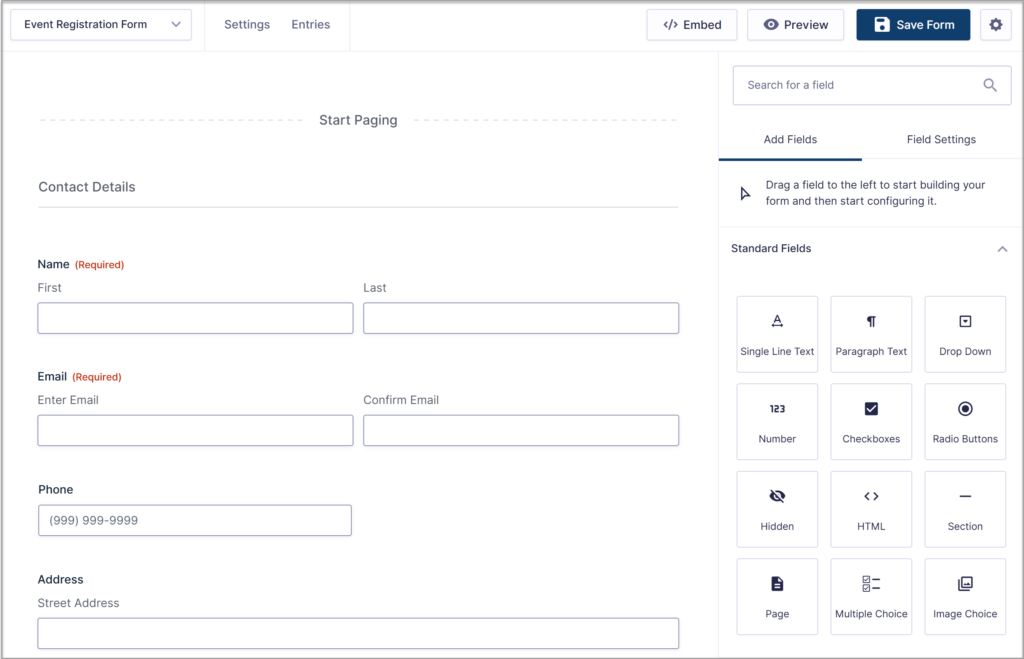
- Open the template: In your WordPress dashboard, go to Forms, click Add New, and choose the Event Registration Form template.
- Set your tickets and questions: Rename the ticket tiers and set the prices, then change the second page to the questions you need answered before the day.
- Set the capacity and the closing date: In the form settings, use Entry Limit to cap registrations at your venue’s capacity, and Schedule Form to close registrations automatically the day before.
- Connect a payment method: Install the Stripe, PayPal, or Square Add-On, connect your account, and set up a feed on the form so attendees pay as they register.
- Set up notifications and the confirmation, then publish: Notifications are the emails that go out when someone registers, to you and to the attendee. The confirmation is the message they see on the page after they submit. Set both, drop the form in the Gravity Forms block, publish the page, and registrations are open.
What should happen between sign-up and the event
Once someone has registered, three things should take care of themselves: they get an email with the details they’ll need, they’re on the list for the day, and if the event fills up, the form knows.
The registration email that has everything in it
The registration email is the one attendees search for on the morning of the event, so put the date, time, address, and what to bring in it. If it lands in spam, attendees assume their registration didn’t go through, and you spend the run-up to the event responding to emails.
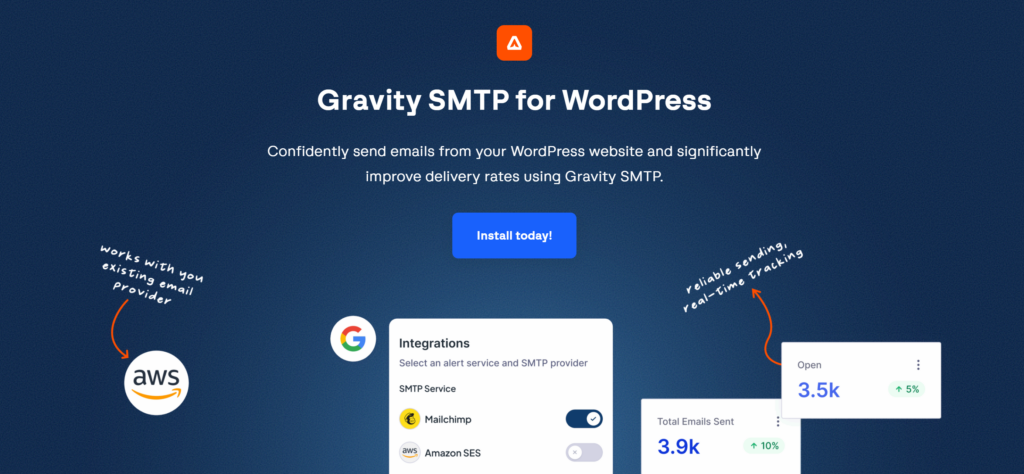
WordPress on its own isn’t reliable at sending email, so Gravity SMTP routes your site’s email through a proper email service and keeps a log of every message. When someone says they never got their registration email, you can check in seconds and resend it.
Gravity SMTP is included with Elite, Nonprofit, and Developer licenses.
The list at the door
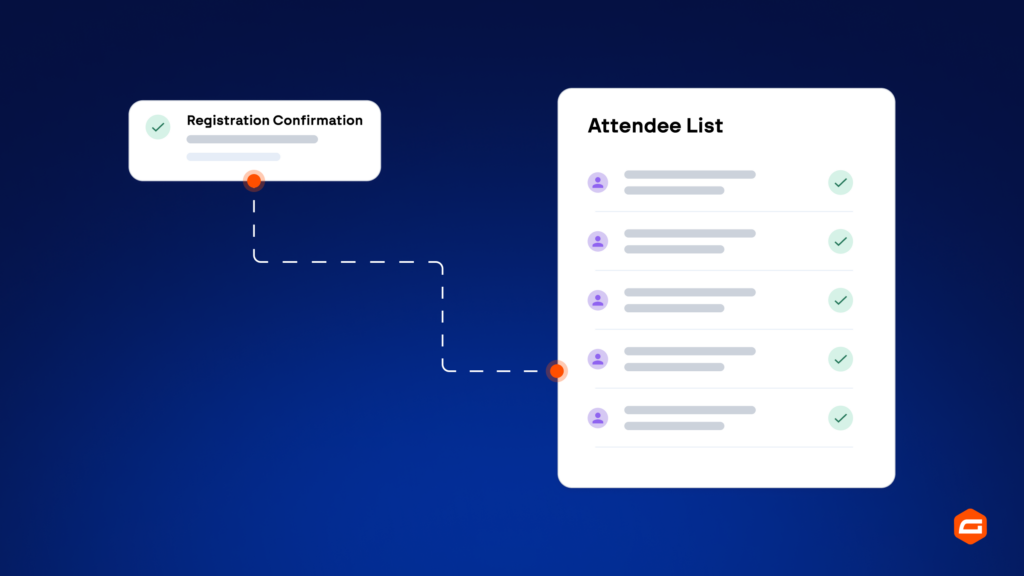
Every registration is an entry in Gravity Forms, so the attendee list already exists. Filter the entries by ticket type or session, export to CSV, and you have a check-in sheet, a seating plan, or a list for the caterer without retyping anything. On the day, the entries list works on a tablet at the door.
When the event is full
Entry Limit closes the form when you hit capacity, so you’re never over-subscribed. If you’d rather keep taking names, the Overflow Add-On from Gravity Labs keeps the form open past the limit and puts later registrations on a waitlist, so when someone cancels, the next person can be offered the place.
Attendees who come to the next one
Everyone who registers is someone who might come again. Add-ons for Mailchimp, HubSpot, and other tools add each attendee to your list automatically, tagged by the event, so the invitation to the next one goes to people who came to the last.
When an event registration form isn’t enough
An event registration form is the right tool for workshops, community events, fundraiser dinners, courses, and most conferences up to a few hundred people. It gets harder to justify when you need badge printing, multi-track agendas with per-session capacity, or on-site check-in apps for large numbers.
At that scale, look at pairing the form with dedicated event software, or see our guide to building an event registration form for field marketing, which covers the CRM and badge side in detail.
Frequently asked questions
Can one person register several people on the same form? Yes. Use a quantity field for the number of tickets and, if you need each attendee’s name, add a List field so the person registering can enter a row for each guest.
Can I send a reminder email before the event? Yes. The simplest way is to add attendees to your email tool through the Mailchimp or HubSpot Add-On and schedule the reminder there. If you want the reminder sent from the site itself, Gravity Flow can send a notification step a set number of days after registration.
Can I make an event registration form in Google Forms? You can, for an event with no charge and no capacity limit. Google Forms can’t take payment, cap registrations, or send a reliable registration email, so most organizers move to a form on their own site once any of those matter.
Registrations that run themselves
Build the form once and every registration arrives paid, confirmed, and on the list, all on the WordPress site you already run. The week before the event, you check the entries list instead of three inboxes.
Get started with Gravity Forms

Newsletter
Keep up to date with what’s happening at Gravity – sign up for the newsletter!