In a lot of businesses, requesting time off still means emailing your manager and hoping they reply before the flights go up in price. Or it means a PDF that gets printed, signed, scanned, and sent to HR, who type the dates into a calendar by hand. Either way, nobody can say for sure who’s off next month without asking around.
A time off request form is a form employees fill out to ask for vacation, sick leave, or other time away, with the dates, the type of leave, and anything the manager needs to approve it. The useful version lives on your website, sends the request to the right manager on its own, and keeps a record of the decision.
In this post we’ll look at what to put on one, how to build it in WordPress with Gravity Forms, and how to add the approval step so the request doesn’t stall in someone’s inbox.
Why the email and the PDF both fail
The request itself isn’t the hard part. The trouble is that neither an email nor a PDF does anything once it’s been sent. The manager has to remember to reply. If they’re away, nobody else sees it. HR finds out when the approval is forwarded to them, if it is. And when two people from the same team book the same week, nobody notices until the rota is being written.
A form that routes each request to the right manager, records the answer, and tells everyone who needs to know closes all of those gaps. The employee gets a decision, the manager gets a reminder if they sit on it, and HR sees every approved request in one place.
What a time off request form needs to include
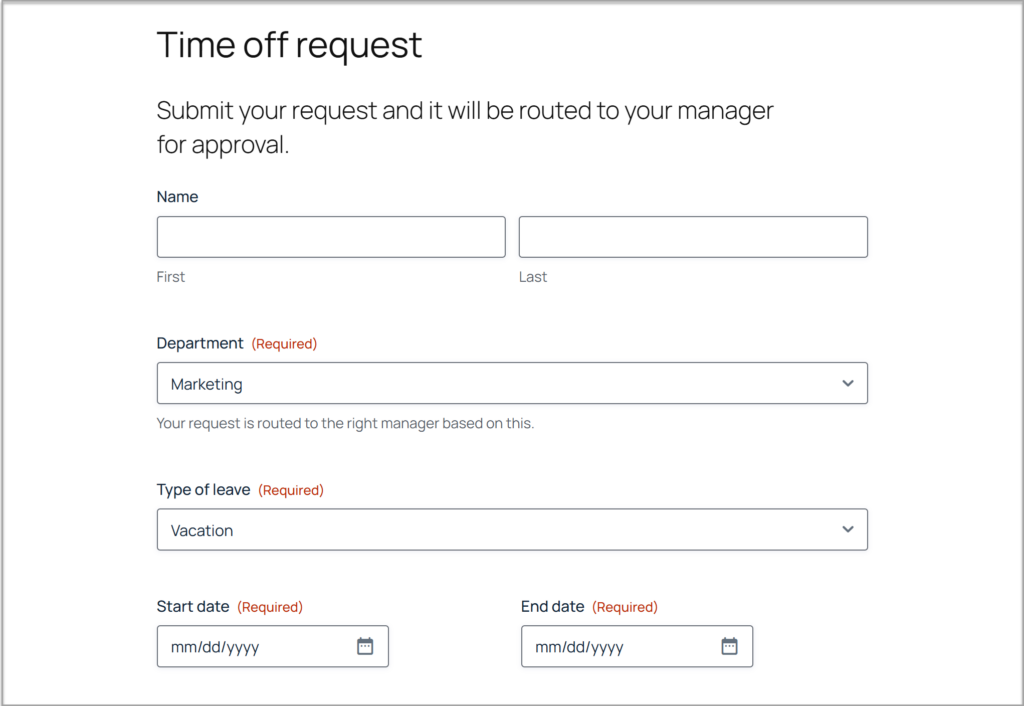
A good time off request form gives the manager enough information to make a decision and gives HR what they need to record the absence, without asking the employee for anything more. For most teams, that comes down to these:
- Employee name and team: The team or department is what decides which manager the request goes to.
- Type of leave: A dropdown for vacation, sick leave, personal, unpaid, and whatever else your policy allows.
- Start and end dates: Two date fields, so there’s no ambiguity about which days are covered.
- Total days requested: A number field, so the employee and the manager are working from the same figure.
- Coverage or handover notes: Who’s picking up their work, or a note saying nothing needs covering. This is the question managers most often have to ask by reply.
- Reason: Optional for vacation, useful for other types. Don’t make people justify a holiday.
- Anything else: A short field for the thing your questions didn’t cover.
Building your time off request form in WordPress: five steps
The form is only a handful of fields, so building it from scratch takes about ten minutes. Each step is short, and the documentation has the detail if you want it.
If you’ve connected Gravity Forms MCP to an AI assistant, there’s an even quicker route: paste this post into the chat and ask it to build the form on your site for you.
- Create a blank form: In your WordPress dashboard, go to Forms, click Add New, and choose Blank Form.
- Add the fields: Name, a dropdown for team, a dropdown for leave type, two Date fields, a Number field for total days, and a Paragraph field for handover notes.
- Add conditional logic: Show the reason field only for the leave types that need one, so someone booking a vacation isn’t asked to explain it.
- Set up notifications and the confirmation: Notifications are the emails that go out when a request is submitted, to the manager and to the employee. The confirmation is the message the employee sees on the page after they submit. Both can be customized and are in the form settings.
- Add the form to a page: Drop your form in the Gravity Forms block on a page only logged-in staff can see, publish it, and you’re taking requests.
How to add approval to a time off request form
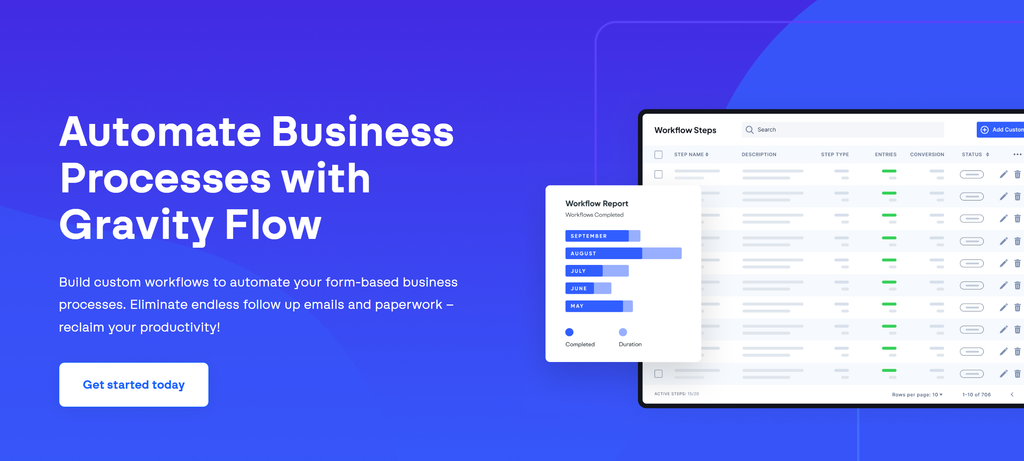
An approval step sends each request to the right manager, records their decision, and tells everyone who needs to know. Collecting the request is the easy part, and this is where the form starts to save real time. In Gravity Forms, the approval step comes from Gravity Flow.
The request goes to the right manager
An approval step routes on the team the employee selected, so a request from the design team lands with the design lead and a request from support lands with the support manager.
The manager approves or declines
The decision is recorded against the request, and the entry’s timeline shows who made it and when. If a manager is on leave themselves, the step can fall back to a second approver or escalate after a set number of days, so a request never waits for someone who isn’t there.
Everyone who needs to know finds out
On approval, the employee gets a yes, HR gets the record, and the request can be posted to a team channel through the Slack Add-On or pushed to a shared calendar or HR system through Zapier. On decline, the employee gets a reason rather than silence.
The record keeps itself
Every request, decision, and date is on the entry, with a timeline of who did what. When someone asks how much leave a team member has taken this year, the answer is in the entries list, not in a manager’s inbox.
Gravity Flow is a premium workflow automation add-on that works with Gravity Forms, brought to you by the Gravity team. Learn more about Gravity Flow, or see the full build in how to build a time off request form with approval routing.
Make sure the emails arrive
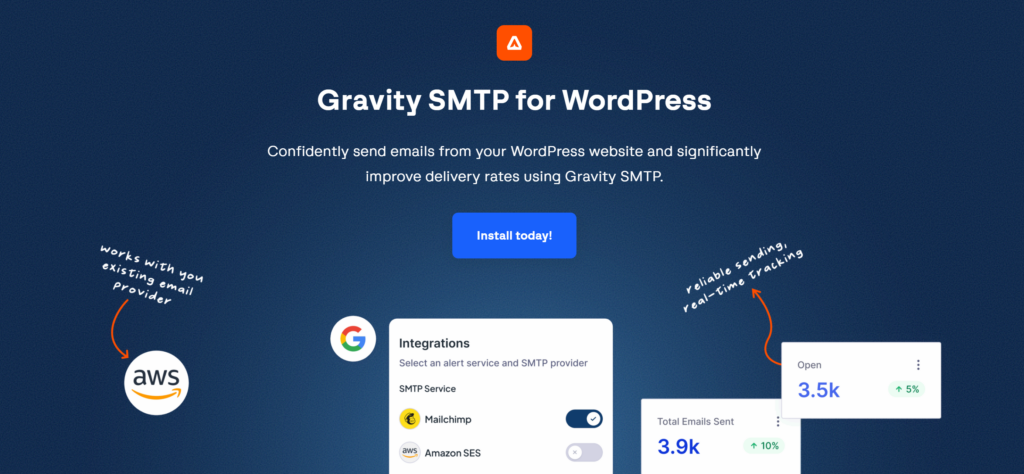
Approval by email only works if the email gets there. If a manager’s notification lands in spam, the request sits until someone chases it, and you’re back to the problem you were fixing.
WordPress on its own isn’t reliable at sending email, so Gravity SMTP routes your site’s email through a proper email service and keeps a log of every message. When a manager says they never got the request, you can check in seconds.
Gravity SMTP is included with Elite, Nonprofit, and Developer licenses.
When a time off request form isn’t the right answer
If you already run an HR platform such as Gusto, BambooHR, or Workday, it has time off requests built in, and you should use that rather than build a second system.
A form on your website is the right choice for teams that don’t have an HR platform, for businesses that want the request process on the same site everyone already logs in to, and for agencies building it for clients who need approvals without another subscription.
If you also need to track remaining leave balances and accruals, look at the Gravity Flow Vacation Requests extension, which adds that on top of the workflow.
Frequently asked questions
How do I stop two people on the same team booking the same week? The form doesn’t block it automatically, but the manager can see every approved and pending request for their team in the Gravity Forms entries list before they approve a new one, so the clash is visible at the point of decision rather than when the rota is written.
Can I export time off requests to a spreadsheet? Yes. Gravity Forms entries export to CSV, and you can filter by team, leave type, or date range first, which is usually all HR or payroll needs at the end of the month.
Can I make a time off request form in Google Forms? You can, for collecting the dates. Google Forms can’t route the request to a specific manager, record an approval against it, or remind anyone when it’s sitting unanswered, so most teams move to a form on their own site once the approval part starts to matter.
Requests that get answered
Build the form once and every request goes to the right manager, gets a decision, and ends up on the record, all on the WordPress site your team already logs in to. Nobody prints anything, and nobody books flights while they wait for a reply.
Get started with Gravity Forms

Newsletter
Keep up to date with what’s happening at Gravity – sign up for the newsletter!