If you run a course, a club, or any membership program that people sign up for, the form is usually the easy part. Someone still has to create the account, send the login, add the person to the email list, and check they paid. That happens when someone has a spare ten minutes, and the person who signed up has to wait.
A registration form is a form on your website that collects who’s signing up, what they’re signing up for, and the details you need before they start. In this post we’ll look at what a registration form needs to include, how to build one in WordPress from the registration form templates that come with Gravity Forms, and how to have the account, payment, and welcome email handled on submit.
What a registration form needs to include
A good registration form collects what you need to get the person started and nothing extra that you can easily ask for later.
For most organizations, it comes down to these:
- Who they are: Name and email. Add a phone number if you’ll need to reach people about schedule changes.
- What they’re registering for: A dropdown of courses, membership levels, teams, or sessions, with the price beside each one if it’s paid.
- Login details: A username and password, if the person is getting an account on your site.
- What you need to know before they start: Skill level, an emergency contact, a date of birth for age-limited programs, or dietary requirements for anything with food. Ask only for what you’ll act on or really need to know.
- Agreement to your terms: A single checkbox with a link to the terms, waiver, or code of conduct, so you have a record they agreed.
- Payment: Card details on the form itself for anything with a fee, so the place is paid for at the point of registration.
- How they heard about you: One question, and you’ll know which promotion brought them in.
Start with a registration form template

Gravity Forms includes a template library with every license, in the form editor under Add New, and there are several registration form templates to choose from:
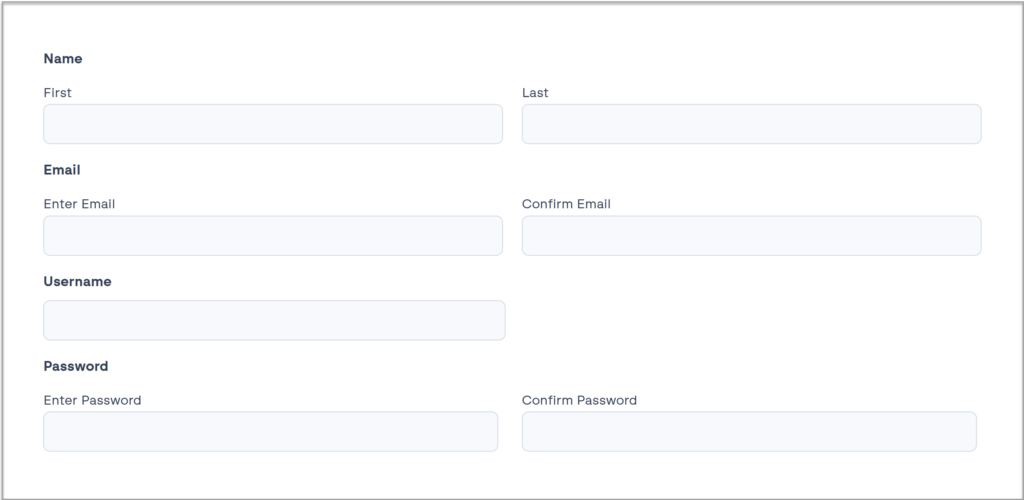
- User Registration: The simplest of the three, with name, email, username, and password, ready for you to add your own questions.
- Course Registration Form: The same details plus course selection.
- Stripe Membership Form: A three-page form with membership levels on the first page, login details on the second, and payment on the third.
If you want to take payment on the registration form, you’ll need to connect a payment provider such as Stripe, Square, or PayPal, which are available with a Pro or Elite license. If you want registrants to get an account on your WordPress site, you’ll need the User Registration Add-On, which comes with the Elite license.
What should happen after someone registers
After someone submits a registration form, four things should happen without anyone on your team touching it: the payment is taken, their account is created, a welcome email arrives, and they’re added to your list. That’s the ten plus minutes of admin, gone.
Payment comes with the registration
When payment is part of the form, there’s no invoice to send and no unpaid registration to chase. The Stripe, PayPal, and Square add-ons take the payment as part of the submission, and the payment status is stored with the registration, so you can see at a glance who has paid.
For memberships, set up a subscription feed and the renewal is charged automatically. Payment add-ons need a Pro or Elite license. Our guide to taking payments with Stripe covers the setup in detail.
The account is created for you
Creating accounts by hand is the slowest part of the whole process, and it’s the part people forget. The User Registration Add-On does it the moment the form is submitted. It creates a WordPress user from the entry, fills in the profile from the form fields, and gives the new user the role you chose, so a student sees the course pages and a member sees the members’ area.
The person can log in to your site as soon as they’ve registered, and nobody on your team has touched the dashboard. It works for membership sites, courses, and communities, and it’s included with Elite and Nonprofit licenses.
The welcome email arrives
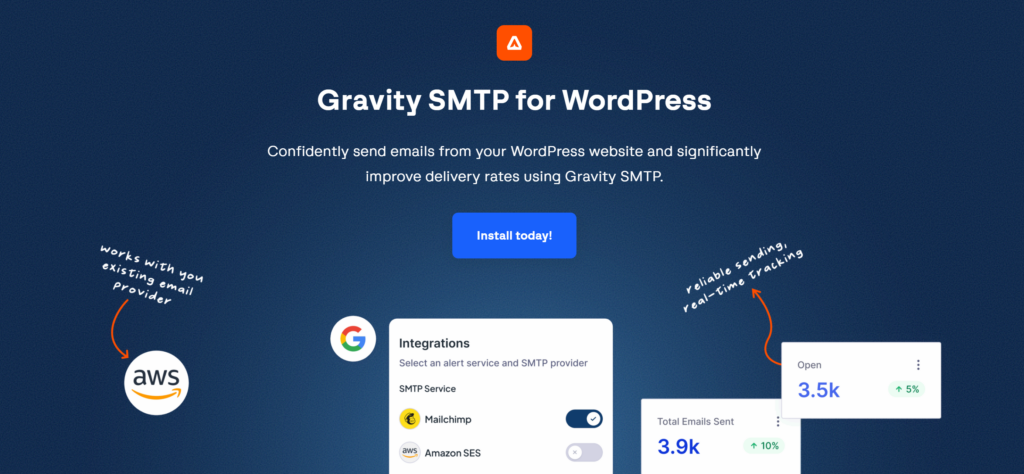
The welcome email tells a new registrant where to log in, what happens next, and who to contact. If it lands in spam, their first experience of your program is wondering whether the registration worked, and your first job of the day is telling them it did.
WordPress on its own isn’t reliable at sending email, so Gravity SMTP routes your site’s email through a proper email service and keeps a log of every message. When someone says they never got their login, you can check in seconds and resend it. Gravity SMTP is included with Elite, Nonprofit, and Developer licenses.
Every registrant is on your list
Everyone who registers is someone you’ll want to email again, about the next course, the renewal, or the season ahead. Add-ons for Mailchimp, HubSpot, ActiveCampaign, and other tools add each registrant to your list or CRM automatically, tagged by what they registered for. Zapier covers almost anything else. See the full list on the integrations page.
Registrations that need a yes first

Some registrations shouldn’t go live on submit. A volunteer program with a vetting step, a trade account, or a private community all need someone to look at the application before the account is created.
Gravity Flow adds an approval step to the form, so each registration goes to the right person, their decision is recorded against the entry, and the account is only created once they’ve approved it.
Gravity Flow is a premium workflow automation add-on that works with Gravity Forms, brought to you by the Gravity team. Learn more about Gravity Flow.
Registration forms for different organizations
The structure above stays the same whatever people are joining. The details shift a little.
- Course or class registration form: A course dropdown with dates and prices, a skill level question, and an account so the student can log in to the course material.
- Membership registration form: Membership levels with a monthly or annual subscription, login details, and a renewal that charges itself.
- Club or team registration form: A date of birth for age groups, an emergency contact, a medical or consent checkbox, and a season fee.
- Volunteer registration form: Availability, skills, a background check consent, and an approval step before the account goes live.
- Webinar registration form: Name, email, and the session they want, with the joining link in the notification email and no account needed.
A registration form that does the admin for you
Build the form once and every registration arrives with the account created, the payment taken, and the welcome email sent, all on the WordPress site you already run. The person who registered is logged in before your team has seen the notification.
Get started with Gravity Forms
Frequently asked questions
Do registrants need a WordPress account? Only if you give them one. A registration form works on its own for collecting sign-ups, and the account is added by the User Registration feed. If people don’t need to log in to anything, skip the feed and the form simply records who registered.
Can I offer an early registration discount? Yes. With the Coupons Add-On, you create a code with a fixed or percentage discount and an expiry date, and registrants enter it on the form. The total updates before they pay, and once the date passes the code stops working on its own.
Can I make a registration form in Google Forms? You can, for collecting names. Google Forms can’t create an account on your site, take payment, or send a reliable welcome email, so most organizations move to a form on their own website once registrations need to do more than land in a spreadsheet.

Newsletter
Keep up to date with what’s happening at Gravity – sign up for the newsletter!