If your business sells, books, or raises money through its website, you need a way to take the payment there and then. PayPal is the processor most of your customers already trust, and for many businesses it’s the first one they set up.
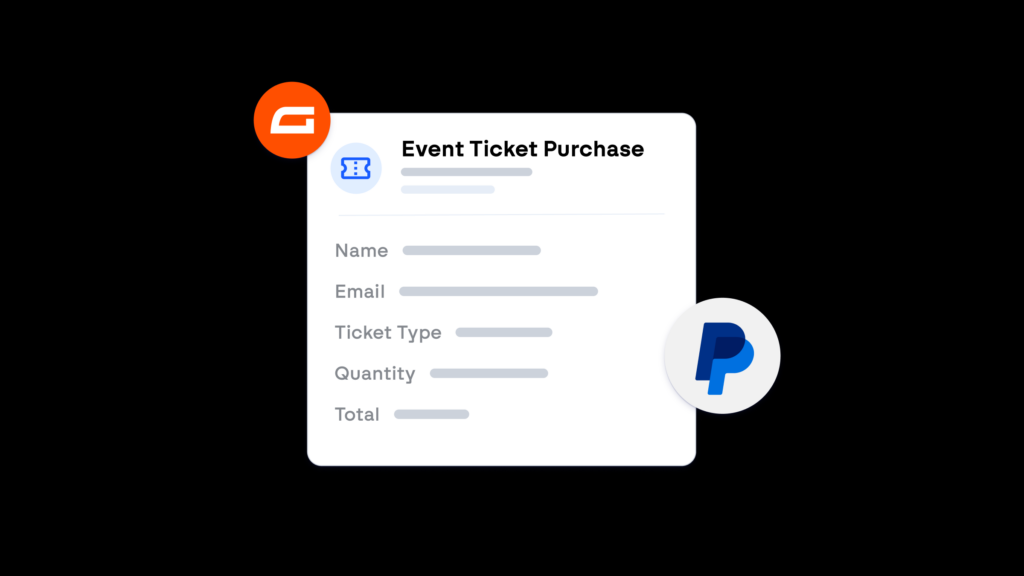
With Gravity Forms, you can build the form that sells the product, takes the booking, or collects the donation. With the PayPal Checkout Add-On, that same form takes the payment as it’s submitted, for the amount it calculates.
In this article, we’ll look at everything the integration can do, how businesses are putting it to work, and what you need on the PayPal side before you start. We’ll also cover the other ways to take PayPal payments on WordPress, including PayPal’s own buttons, so you can be sure this is the right one for your forms.
What PayPal does, for anyone still deciding
PayPal is a payment processor that most customers already have an account with. A business connects its PayPal account to its website, and customers pay with their PayPal balance, a card, or a linked bank account, often without typing anything because PayPal already has their details.
For the business, the money lands in the PayPal account, the fees are per transaction, and there’s no separate merchant account or monthly fee to set up first. That’s why it’s the first processor most small businesses, clubs, and nonprofits add. Where it gets harder is collecting a payment alongside the rest of the information a sale or signup needs, which is the part Gravity Forms handles.
What the PayPal integration does for your business
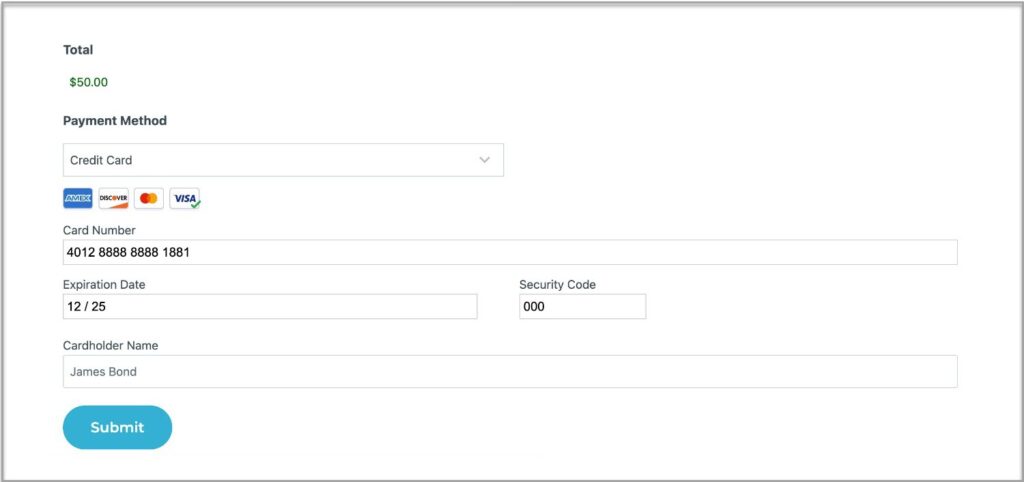
The PayPal Checkout Add-On adds PayPal to any form on your WordPress site and takes the payment as the form is submitted. Here’s what that means for the people running the site and the people buying from it:
- The customer pays on your page: The PayPal field sits in the form, so the customer pays with PayPal, a credit or debit card, Venmo, Pay Later, or a local method like Bancontact or BLIK where PayPal offers it, without leaving your site or needing a PayPal account of their own.
- The amount comes from the form: The feed charges the form total or a specific product field, so a form with quantities, options, and a calculated price charges exactly what the customer chose. There’s no fixed-price button to keep in step with your prices.
- Subscriptions run themselves: A feed can set up recurring payments instead of a one-time charge, with the billing cycle, a setup fee, a trial, and a fixed number of payments if you’re offering a payment plan. PayPal bills on schedule, and the entry in Gravity Forms records who signed up and for what.
- You can approve before you charge: With authorize and capture, the payment is authorized when the form is submitted and captured from the entry when you decide to go ahead. That suits orders you check for stock, or applications you accept before taking the fee.
- Nothing happens until the payment does: Account creation with the User Registration Add-On and post creation with the Advanced Post Creation Add-On can wait for a successful payment, so a member only gets their login, and a listing only goes live, once PayPal confirms the money.
- Only the submissions that should pay, do: Conditional logic on the feed decides when PayPal is involved, so the same form can charge for a paid ticket and skip the payment for a free one.
- Refunds happen from WordPress: A completed payment can be refunded from the entry in your dashboard, without opening PayPal to find the transaction.
Real examples
A PayPal button takes a payment. A form built with Gravity Forms takes the payment and everything the business needs around it. Here are four examples of where that makes a difference:
- Orders that arrive complete: The order form collects the product, the options, the quantity, and the delivery address, calculates the total, and charges it through PayPal in one submission. The entry is the order, with the payment status on it.
- Members who pay before they’re in: The registration form takes the membership fee as a subscription, and the User Registration Add-On creates the account only after the payment goes through, so there are no unpaid logins to chase.
- Donations at the amount the donor chooses: A nonprofit’s donation form offers set amounts and an “other” field, charges whichever the donor picks, and switches to a monthly subscription if they tick the box. The entry records the campaign and the gift for the thank-you.
- Event places that are only sold once: The event registration form charges for each ticket type, with conditional logic skipping PayPal for free sessions, and the Entry Limit setting closes the form when the places are gone.
Setting it up
You need two things: a Gravity Forms Pro, Elite, or Nonprofit license for the PayPal Checkout Add-On, and a PayPal account. If you don’t have a PayPal account yet, you can create one when you connect the add-on. From there, the setup is four steps:
- Install the add-on: In your WordPress dashboard, go to Forms, then Add-Ons, and install the PayPal Checkout Add-On.
- Connect to PayPal: Go to Forms, then Settings, then PayPal Checkout, choose Sandbox or Live mode, click Connect with PayPal, and sign in. Sandbox mode is for testing and needs a separate PayPal developer account, so if you want to test first, start there and switch to Live when you’re done.
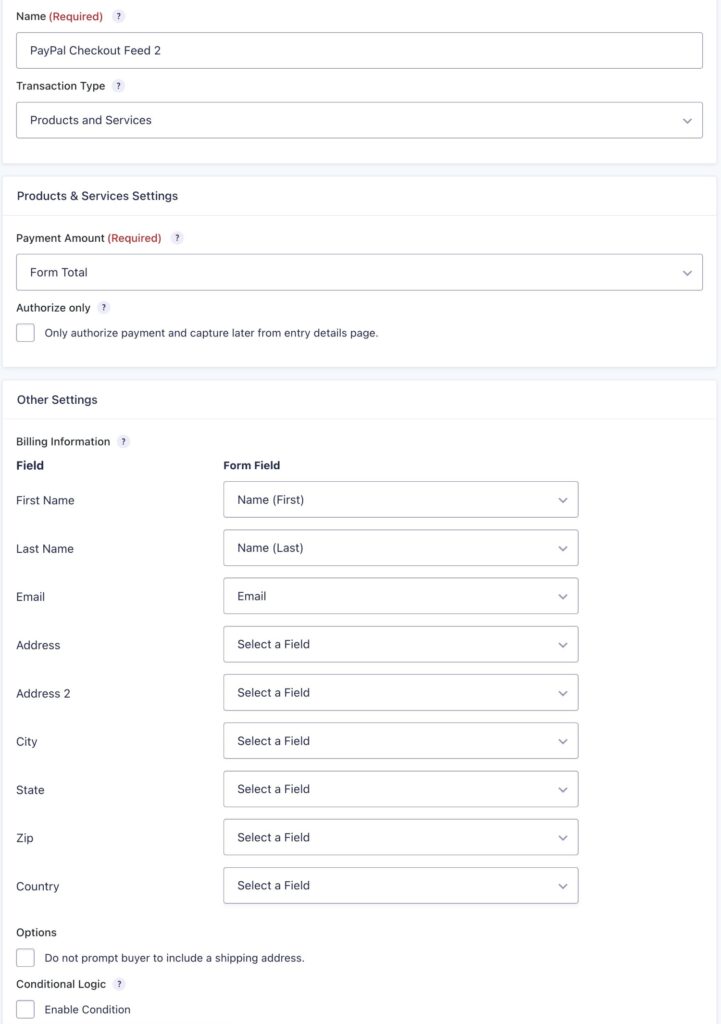
- Build the form and create a feed: Start from the PayPal Checkout Form template or add your own product fields and a PayPal field, then add a PayPal Checkout feed that sets the transaction type, the payment amount, and the billing information mapping.
- Test it, then go live: Submit the form once and check the payment appears on the entry and in your PayPal account. If you tested in Sandbox mode, change the mode to Live and connect your real PayPal account.
Our guide to Gravity Forms and PayPal walks through each screen, including the PayPal field settings and the subscription options.
Other ways to take PayPal payments on WordPress
PayPal’s own routes come up first in any search, and it’s worth being clear about what each one does.
- PayPal payment buttons: PayPal generates a button for a fixed amount that you paste into a page, and there are plugins that make placing it easier. It’s the quickest way to sell one thing at one price. The button can’t ask the customer anything, so any details you need come separately, and there’s no record of the sale in WordPress.
- WooCommerce PayPal Payments: This is WooCommerce’s own PayPal plugin. If your site is a store with a catalog, cart, and checkout, this is the right route, and it’s built for that. It isn’t built for a single form that takes a booking, an application, or a donation.
- PayPal invoices and payment links: PayPal can send an invoice or a link for a one-off amount. Useful after a quote is agreed, but it’s a manual step for each sale, and the customer pays somewhere other than your site.
If the payment belongs to a form, with questions before it and a calculated amount, the PayPal Checkout Add-On is the direct route, whether you already use Gravity Forms or you’re choosing a form builder now.
Frequently asked questions
Can one form offer PayPal and another payment method? Yes. Payment feeds run with conditional logic, so a form can have a PayPal Checkout feed and a Stripe feed, with a choice field on the form deciding which one processes the payment.
Can the integration take a payment without the customer having a PayPal account? Yes. The PayPal checkout lets customers pay with a credit or debit card as a guest, and where PayPal has enabled card fields for your account, they can enter the card directly in your form.
Can one form offer a one-time payment and a subscription? Yes. Create two PayPal Checkout feeds, one for each transaction type, and add a choice field to the form such as “one-time” or “monthly”. Conditional logic on each feed decides which one runs, so a donor who picks monthly is set up as a subscription and everyone else pays once.
Get paid without building a store
Most businesses don’t need a full ecommerce setup. They need to sell a few things, take a deposit, charge a membership, or accept a donation, and they need the payment to work with the website they already have.
With Gravity Forms and PayPal, you take payments on your own WordPress site, giving your customers a processor they trust, and collecting the information your business needs.
Get the PayPal Checkout Add-On

Newsletter
Keep up to date with what’s happening at Gravity – sign up for the newsletter!