If your sales team works in Salesforce and your website runs on WordPress, every form on that site can feed your pipeline directly.
With Gravity Forms, you can build a form for any requirement, from a simple contact form to a multi-page quote request with payment. With the Salesforce Add-On, every one of those forms can create the matching record in Salesforce the moment it’s submitted, whether that’s a lead, a contact, an account, or an object your admin has built, with the fields mapped the way your team expects to see them.
In this post we’ll look at everything the integration can do, how businesses are using it, and how to check whether your Salesforce account supports it before you buy. We’ll also cover the other ways to connect Salesforce and WordPress, so you can be sure this is the right one.
What Salesforce does, for anyone still deciding
Salesforce is a CRM: a system for tracking every person and company you’re selling to, or raising money from, and every conversation along the way.
Leads become contacts, contacts belong to accounts, accounts have opportunities with a value and a stage, and the reporting on top tells you what’s in the pipeline and where it stalls. It’s built for teams with a sales process to manage rather than a list to email, which is why it’s the default for larger sales teams and the bigger nonprofits.
A CRM is only as good as what goes into it, though, and for most businesses the website is where the new names come from. That’s the gap the integration closes.
What the Salesforce integration does
The Salesforce Add-On turns a form submission on your WordPress site into a record in Salesforce, without anyone retyping it. Here’s what it can do:
- Create leads, contacts, accounts, and other objects: Any object type in your Salesforce account, including the custom ones your admin has set up.
- Map any form field to any Salesforce field: You choose which form field fills which Salesforce field, so a “company size” dropdown on the form lands in the matching picklist in Salesforce.
- Update existing records instead of duplicating them: If the person is already in Salesforce, the add-on can update their record rather than creating a second one.
- Send only the submissions that qualify: Conditional logic on the feed means a form can send enterprise inquiries to Salesforce and leave the rest in WordPress.
- Update more than one object from one form: Several feeds can run on the same form, so one submission can create a contact and an account, or a lead and a campaign member.
What it looks like in practice
The integration is only as useful as the forms behind it. These are the ones we see most:
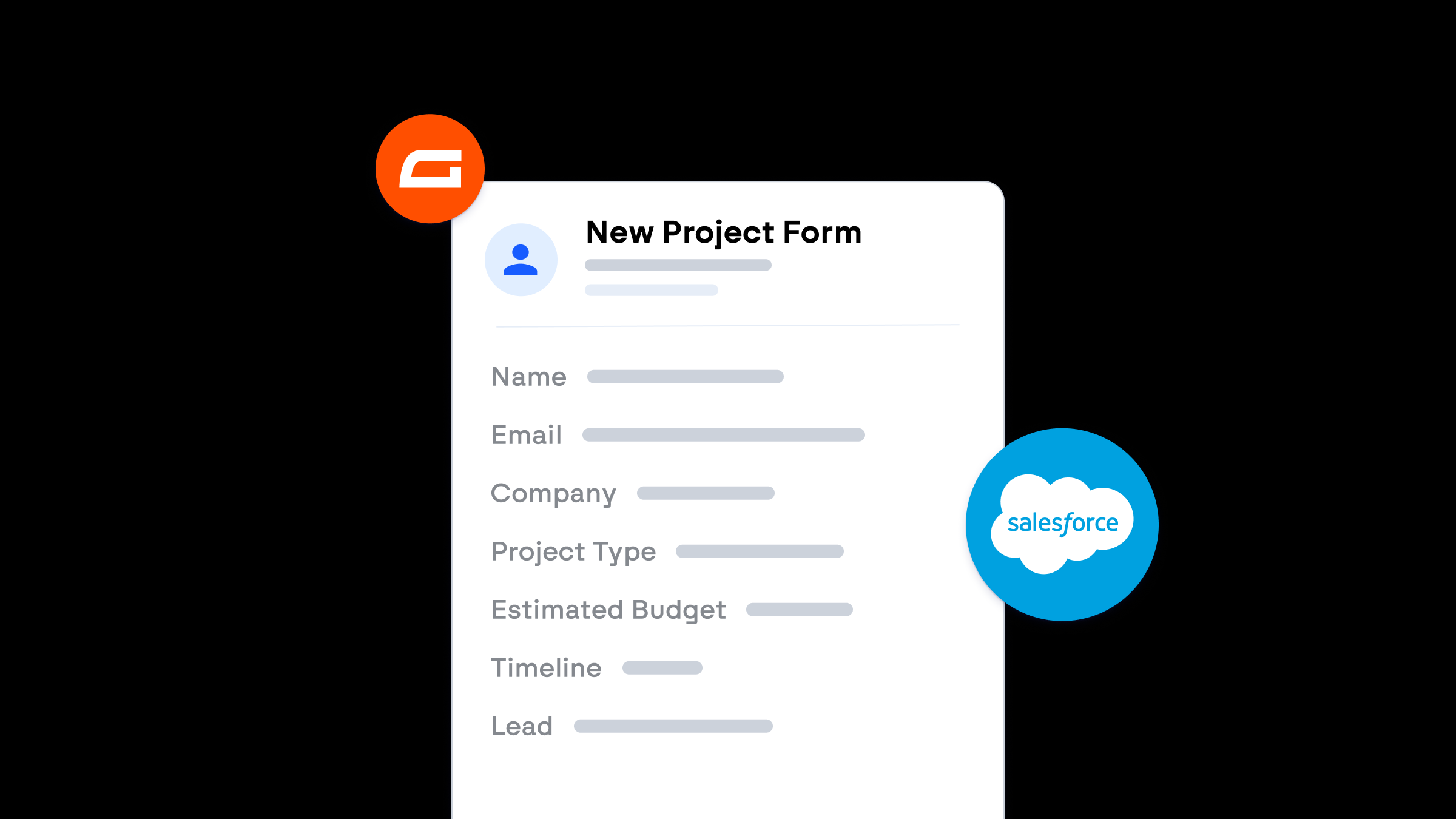
- A quote request creates a lead: The quote request form on your site creates a lead in Salesforce with the service, budget, and timeline already filled in, assigned to the right rep by territory or product.
- A client intake creates a contact and an account: The client intake form creates the contact and the account they belong to in one submission, so the account team starts with the record complete.
- A donation updates the donor: A nonprofit’s donation form updates the donor’s contact record with the gift, so the development team sees giving history without an export.
- An event registration adds a campaign member: The event registration form adds each attendee to the campaign for that event, ready for the follow-up sequence.
What you need to get started
Three things: a WordPress site running Gravity Forms, an Elite or Nonprofit license, and a Salesforce account with API access.
The API access is the one to check first, because it depends on your Salesforce edition. It’s included with Enterprise, Performance, Unlimited, and Developer editions. On Professional edition it’s a paid add-on from Salesforce, and Essentials doesn’t offer it.
If you’re not sure which you have, use our Salesforce connection verification tool. Click Start, authorize it in Salesforce, and it tells you whether your account can accept API connections. It takes a minute, and it’s worth doing before you buy the license.
Setting it up
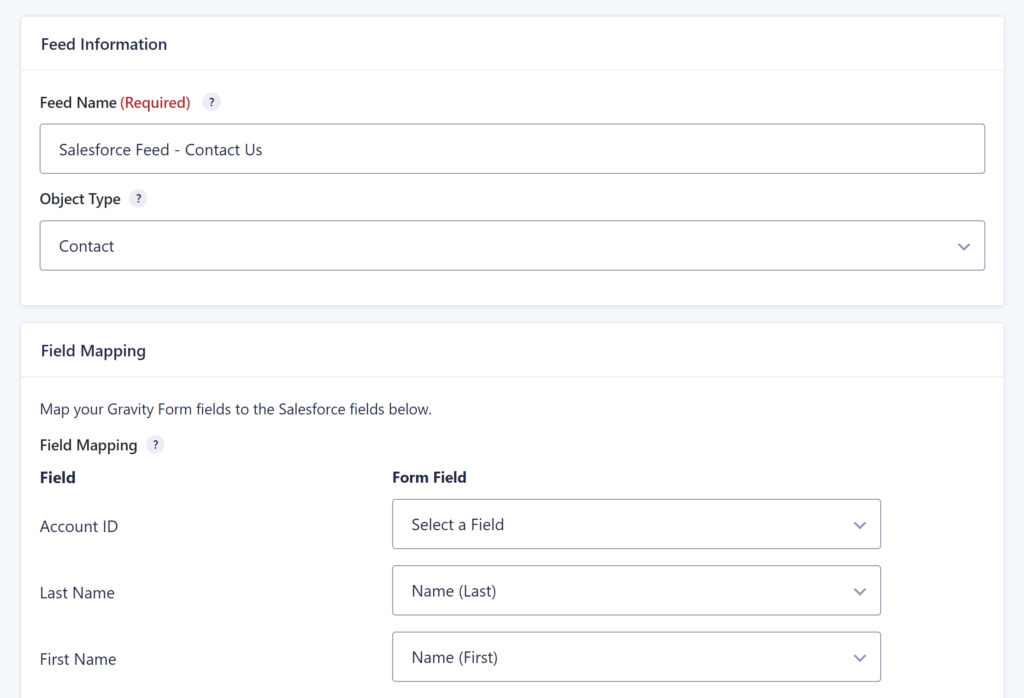
Once you have the license and API access, the setup is four steps:
- Install the add-on: In your WordPress dashboard, go to Forms, then Add-Ons, and install the Salesforce Add-On.
- Connect to Salesforce: Sign in to your Salesforce account from the add-on settings and click Allow.
- Create a feed: On the form, add a Salesforce feed, choose the object it should create, and map the form fields to the Salesforce fields.
- Send a test entry: Submit the form once and check the record appears in Salesforce.
Our setup guide for the Salesforce Add-On walks through each screen.
Other ways to connect Salesforce and WordPress
The Gravity Forms integration isn’t the only route, and it’s worth knowing when the others fit.
- Salesforce Web-to-Lead: Salesforce generates an HTML form you paste into a page. It creates leads only, the form looks like Salesforce’s rather than your site’s, and there’s no conditional logic, notifications, or entry record in WordPress. Fine for a single lead form if you don’t need anything else from it.
- Zapier: Connects any WordPress form to Salesforce through Zapier’s own account and a monthly task limit. Useful if you’re already paying for Zapier and want to route the same submission to several tools, and Gravity Forms has a Zapier Add-On for exactly that.
- Sync plugins: Plugins that keep WordPress and Salesforce in step both ways, so a change in one shows up in the other. They suit sites that need Salesforce data on the WordPress side, such as WooCommerce orders synced to Salesforce or a logged-in area where customers see their own account details. More to set up and maintain, and usually more than a lead form needs.
If what you want is for form submissions to become Salesforce records, the add-on is the shortest path, and the entries stay in WordPress as a record of their own.
Frequently asked questions
Which Salesforce editions work with the Gravity Forms integration? Any edition with API access: Enterprise, Performance, Unlimited, and Developer include it, and Professional can add it for a fee. Essentials doesn’t have API access. The connection verification tool checks your account in a minute.
Can the integration update a record that’s already in Salesforce? Yes. Each feed has a setting to update existing records instead of creating duplicates, matched on the field you choose, such as email address.
Can a form send to Salesforce and an email tool at the same time? Yes. Feeds run independently, so the same submission can create a Salesforce lead and add the person to Mailchimp or HubSpot, each with its own conditional logic.
Leads that arrive in Salesforce already
Connect the two once and every form on your WordPress site becomes a way into Salesforce, with the record created, the fields mapped, and the rep notified before anyone has opened an inbox. Nothing gets retyped, and nothing gets missed.
Get the Salesforce Add-On with an Elite license

Newsletter
Keep up to date with what’s happening at Gravity – sign up for the newsletter!