HubSpot is only as useful as the contact information stored in it, and the forms on your WordPress site are where most of that information is first collected.
Every quote request, demo booking, download, and event registration can be a new contact in your CRM, and each one can arrive with the details that matter to your business: which stage they’re at, who should own the follow-up, and what they told you on the form.
With Gravity Forms, you can build any of those forms on your own site, styled the way your site is styled. With the HubSpot Add-On, each submission creates or updates the contact in HubSpot the moment it’s sent, with the properties filled in and the right person assigned to follow up.
In this article, we’ll look at everything the integration can do, how businesses are putting it to work, and how it compares with HubSpot’s own WordPress plugin, so you can be sure you’re using the right one for your forms.
What HubSpot does, for anyone still deciding
HubSpot is a CRM with marketing, sales, and service tools built on top of it. Every person who interacts with your business becomes a contact, with a record of every email, call, page view, and form they’ve filled in.
HubSpot’s tools then use that record to run email sequences, score leads, and hand them to the right rep at the right time. It’s the default for businesses that want sales and marketing in one place without a Salesforce-sized setup.
However, none of that works unless contacts arrive with accurate data attached. The forms on your website are where most of that data is collected.
What the HubSpot integration does for your business

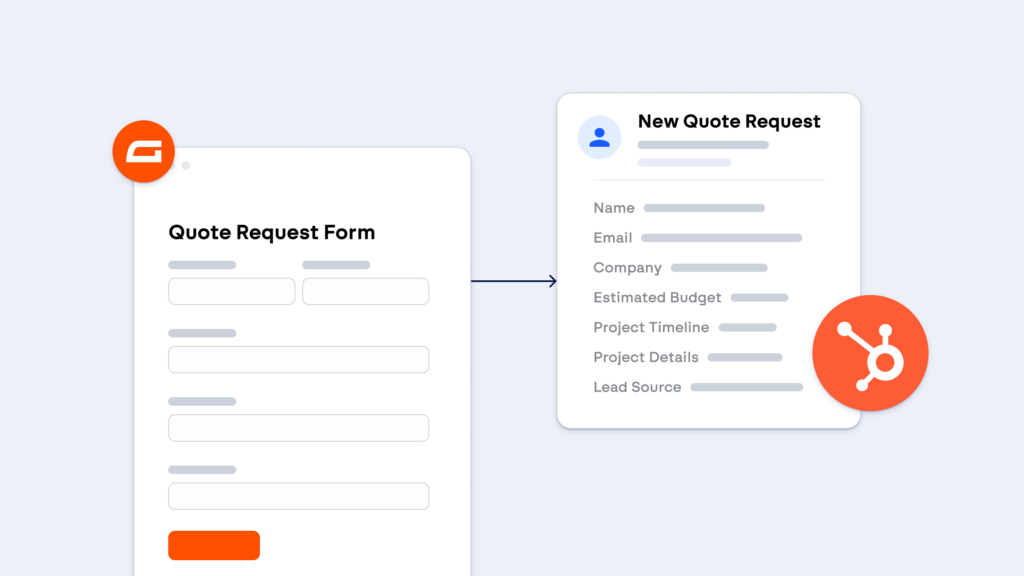
The HubSpot Add-On sends a submission from any form on your WordPress site to HubSpot, and creates or updates the matching contact. Here’s what that means for your sales and marketing teams:
- No lead sits in an inbox: The contact is sent to HubSpot the moment the form is submitted, so follow-up starts from the CRM, not from an email someone has to forward. If the person is already a contact, their record is updated rather than duplicated.
- The right person picks it up: Each feed can assign new contacts to a team member, or route them by what they chose on the form, so an enterprise inquiry lands with the enterprise rep and a small business inquiry with whoever handles those, without a manager triaging.
- Your pipeline reports stay honest: The feed sets the lifecycle stage and lead status as the contact is created, so a download counts as a subscriber and a demo request as a marketing qualified lead from the start. Your funnel numbers reflect what people actually did.
- Your segments have something to work with: Every answer on the form can be mapped to a contact property, so the service they asked about, their budget range, or the event they registered for is on the record and ready to segment by.
- Your automations start themselves: HubSpot treats each Gravity Forms entry as one of its own form submissions, so the sequences and workflows you’ve already built run as soon as the contact arrives in HubSpot, and the submission shows on the contact’s timeline.
- Only the leads you want reach the CRM: Conditional logic on the feed means a form can send qualified submissions to HubSpot and leave the rest in WordPress, so your contact count stays meaningful.
Real examples
A HubSpot form adds a contact to your CRM. A Gravity Forms feed does that too, but the form itself can also take a payment, collect a file, run a multi-page application, or calculate a quote. Here are four examples of where that makes a difference:
- Faster quotes: When the quote request form creates the contact as a lead and assigns the rep who covers that service, the quote is being priced before anyone has read the inquiry, and the sequence that follows up on it is already running.
- Cleaner onboarding: When the client intake form creates the contact as a sales qualified lead with the company and project details on the record, the first call is booked by a sequence rather than a reply-all, and the account team opens a record that’s already complete.
- Events that run their own follow-up: When the event registration form creates or updates each attendee, the reminder, the thank-you, and the invitation to the next one all come from the sequence you built once in HubSpot.
- Problems caught before they’re public: When the feedback form maps a rating to a property on the existing contact, a low score is on the record the next time the account owner opens it, and a workflow can flag it the moment it comes in.
What you need
A WordPress site running Gravity Forms and a HubSpot account. The HubSpot Add-On is included with every Gravity Forms license, Basic, Pro, Elite, and Nonprofit, and HubSpot’s free CRM is enough to use it.
Setting it up
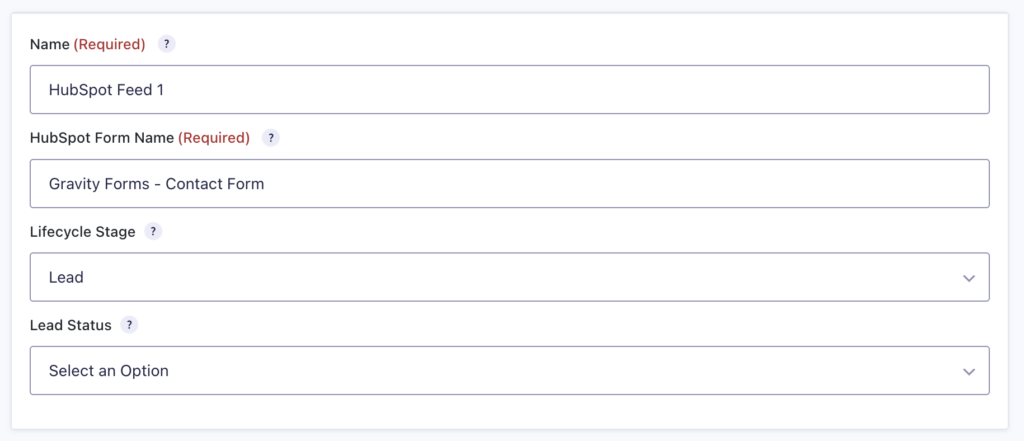
Once the add-on is installed, the setup is four steps:
- Install the add-on: In your WordPress dashboard, go to Forms, then Add-Ons, and install the HubSpot Add-On.
- Connect to HubSpot: Go to Forms, then Settings, then HubSpot, and follow the instructions to sign in and connect to your HubSpot account.
- Create a feed: On the form, add a HubSpot feed, map the form fields to the contact properties, and set the contact owner, lifecycle stage, and any conditions.
- Send a test entry: Submit the form once and check the contact appears in HubSpot with the properties filled in and the submission on the timeline.
The HubSpot Add-On documentation covers each screen in detail.
HubSpot’s WordPress plugin, and the other ways to connect
If you’ve searched for this, you’ve already seen HubSpot’s own plugin. It’s worth being clear about what each route does.
- HubSpot’s WordPress plugin: This is HubSpot’s own, and it’s good at what it’s for. It adds HubSpot’s tracking code to your site, lets you place HubSpot forms, pop-ups, and live chat on your pages, and shows your HubSpot contacts inside the WordPress dashboard. The forms are HubSpot’s forms, built and styled in HubSpot, and the plugin can also pick up submissions from some other WordPress form plugins as basic contact captures.
- The Gravity Forms HubSpot Add-On: The forms are yours, built in Gravity Forms with conditional logic, multi-page layouts, file uploads, payments, and the styling of your site. The feed maps every field to a HubSpot property and sets the owner and lifecycle stage per form, which the plugin’s capture doesn’t do. Many sites run both: HubSpot’s plugin for tracking and chat, Gravity Forms for the forms.
- Zapier: A Zap can create a HubSpot contact from a submission, with the usual Zapier account and task limit in the middle. It makes sense if HubSpot is one of several places the submission needs to go, which is what the Gravity Forms Zapier Add-On is for.
If the form needs to do more than collect a name and email, or you want control over how each contact lands in HubSpot, the Gravity Forms HubSpot Add-On is the direct route, whether you already use the plugin or you’re choosing a form builder now.
Frequently asked questions
Can I route contacts to different owners from one form? Yes. The contact owner setting on the feed can be a fixed person or a condition, so a form with a region or service dropdown can assign each contact to the rep who covers that region or service.
Can a Gravity Forms submission trigger a HubSpot workflow? Yes. Submissions arrive in HubSpot as form submissions, so any workflow or sequence set to start on that form submission runs as it would for a HubSpot form, and the submission shows on the contact’s timeline.
Can a form send to HubSpot and another tool at the same time? Yes. Feeds run independently, so the same submission can create a HubSpot contact and also add the person to Mailchimp or Klaviyo, post to Slack, or trigger a Zap, each with its own conditions.
Contacts that arrive ready to work
With the Gravity Forms HubSpot Add-On in place, every form on your WordPress site can feed HubSpot, and each contact arrives with the owner assigned, the lifecycle stage set, and the answers mapped to properties. When the rep opens a record, the details are immediately available, and the sequence has already started.
Get started with Gravity Forms

Newsletter
Keep up to date with what’s happening at Gravity – sign up for the newsletter!